Calendars & Views
Global Calendar
Master Schedule
Summary
The Master Schedule (also called the Global Calendar) in BuilderPal displays every task, deadline, and scheduled item across all projects you have access to in one company-wide calendar view. It gives managers and admins a complete overview of workload, timelines, and progress without opening individual projects.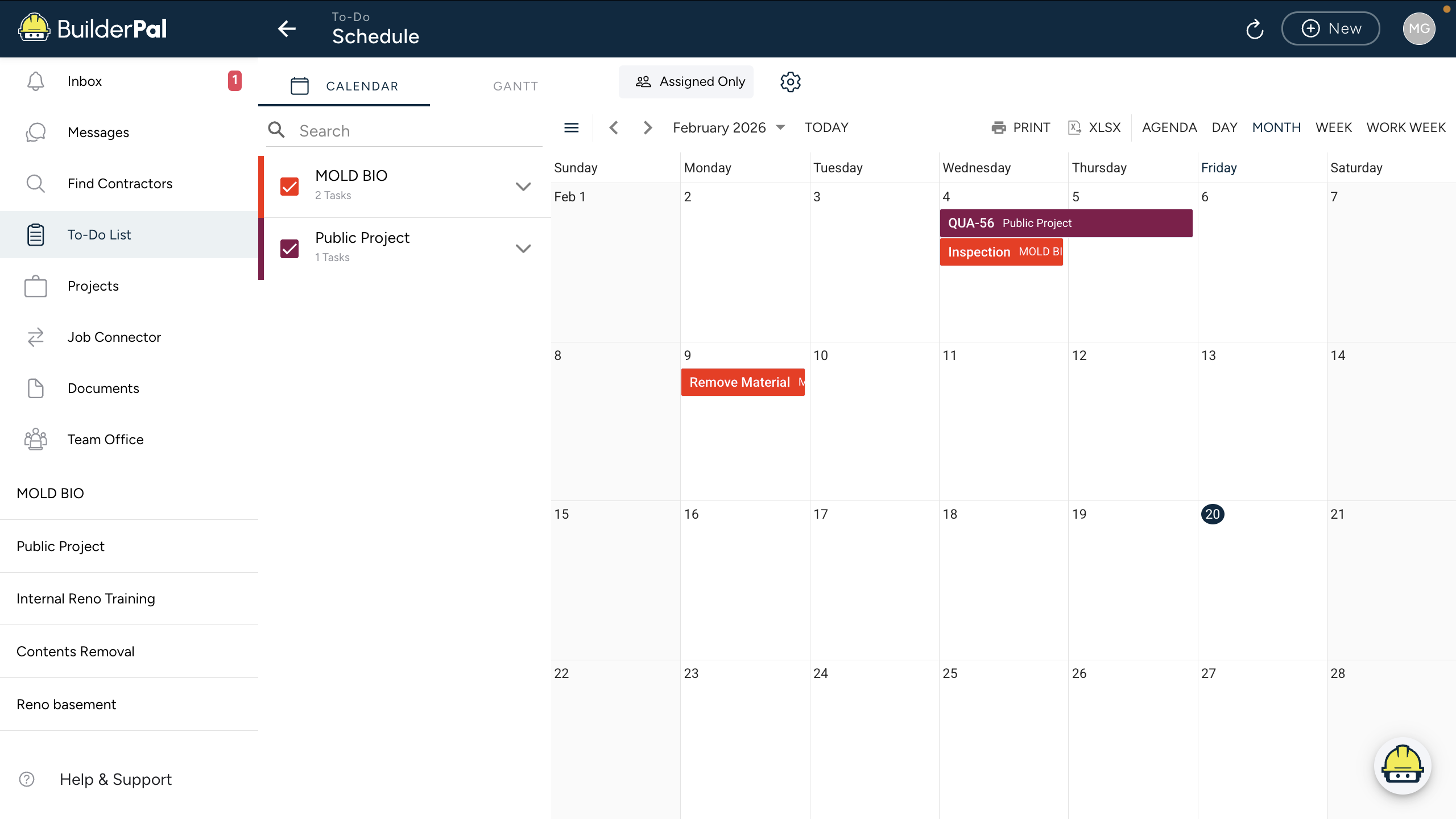
How It Works
- Key parts:
Displays tasks from all accessible projects with project color coding, due dates, status indicators, and filters. - Real-world example:
A Project Manager opens the Master Schedule and sees three projects with major deadlines in the same week, allowing them to rebalance crews or adjust timelines before issues arise.
When to Use
- Daily or weekly workload planning
- Resource allocation and crew scheduling
- Identifying conflicts across projects
- Preparing for team or client meetings
- Exporting a company-wide schedule
Next Steps
- Open the Master Schedule from the left sidebar.
- Turn Assigned Only off to see the full company-wide view.
- Apply filters (status, date range, project) to focus on what matters most.
Related Articles
- Learn the Project Dashboard
- Personal Calendars Overview
- Managing Project Tasks
- Project Access Explained
Personal Calendar
Summary
Your Personal Calendar (My Schedule / To-Do List) in BuilderPal shows every task, action, and deadline assigned to you across all projects in one private view.
Prerequisites
- Role or permission needed: Any team member (always available)
- Setup required: Log in to BuilderPal
Steps
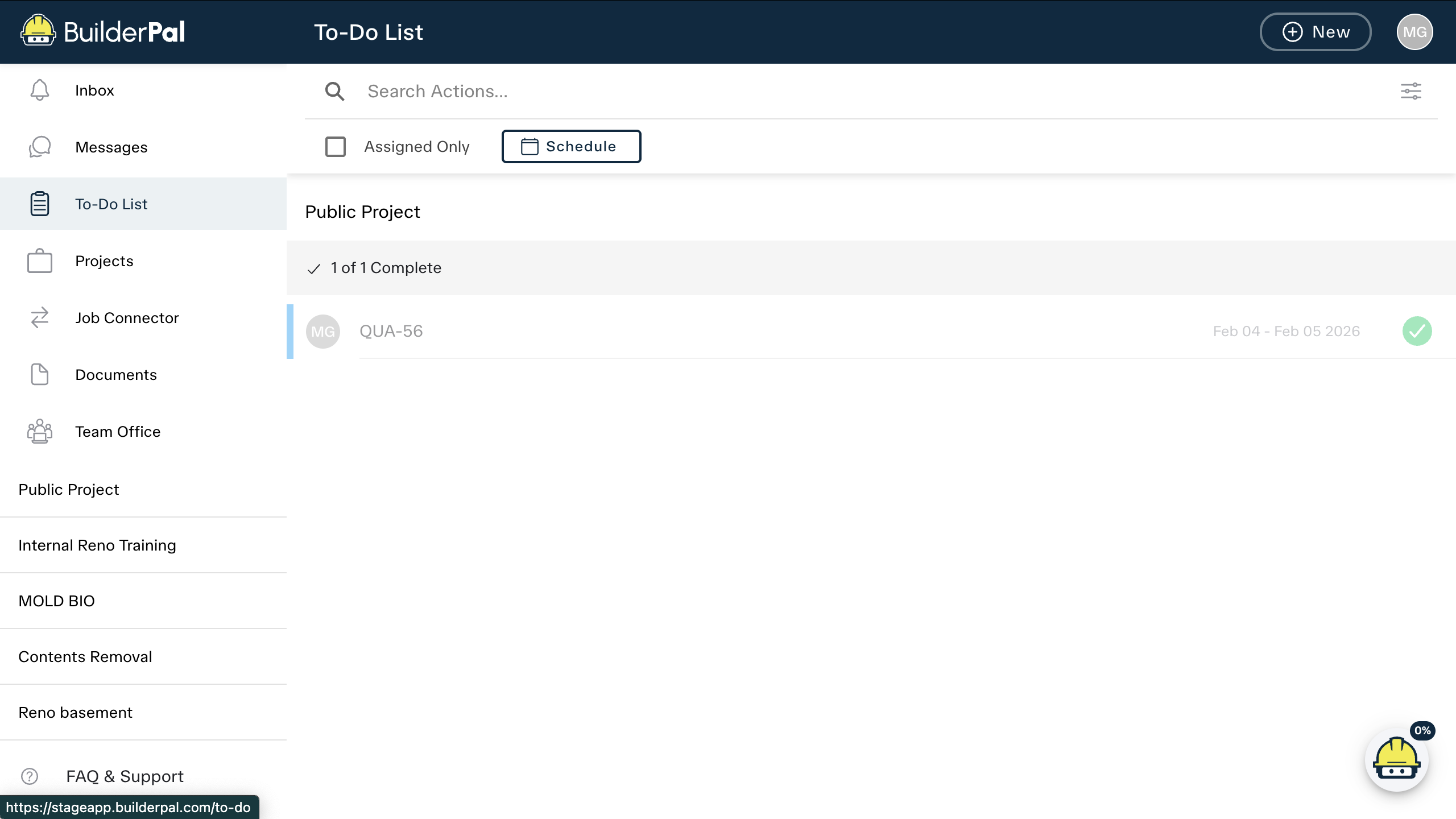
1. Open Your Personal Calendar
- From the left sidebar, click To-Do List.
2. Switch to Schedule View
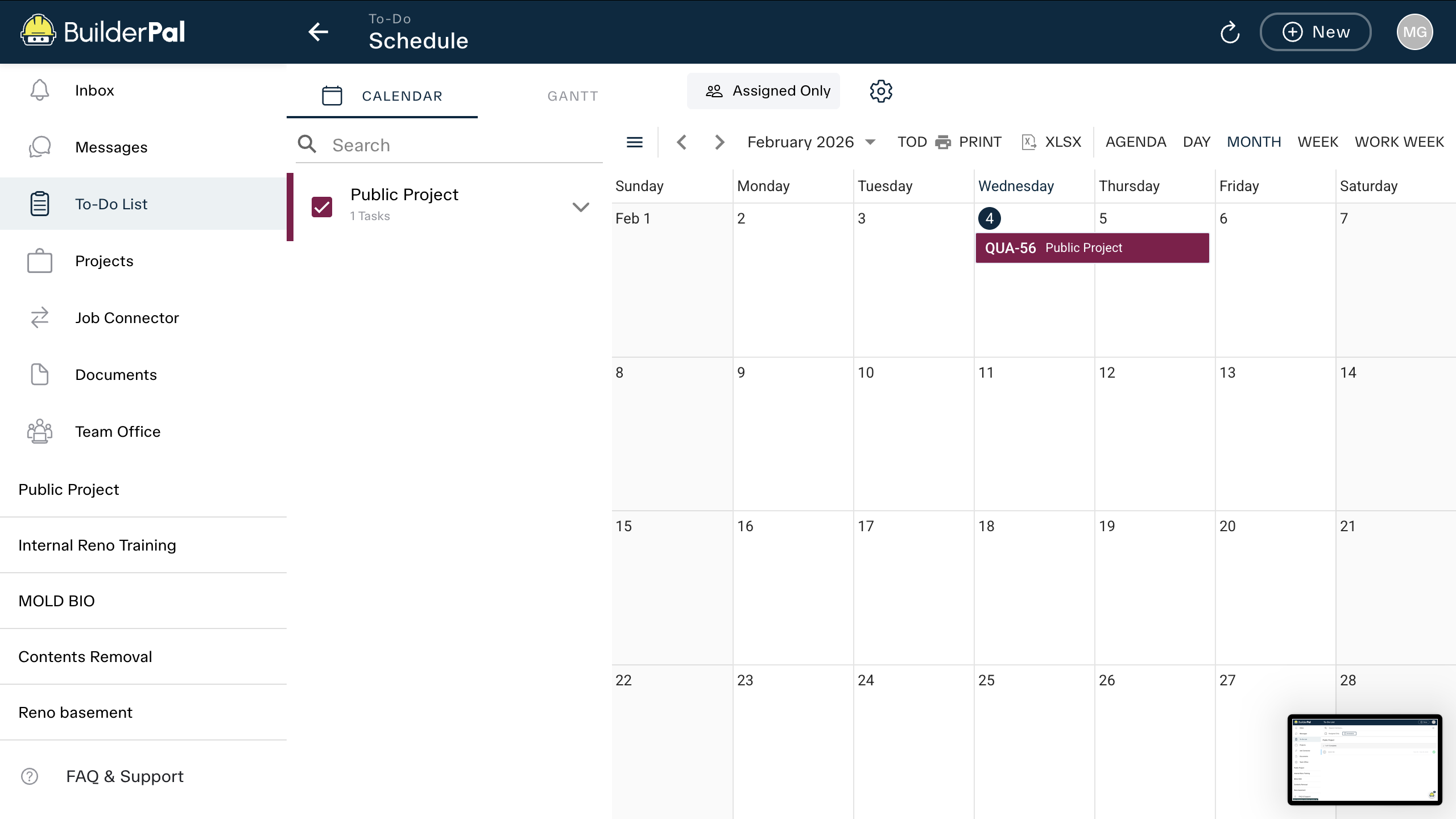
3. View Tasks Across All Projects
- All tasks assigned to you appear here with due dates, project names, and status.
- This view is completely private to you.
Tips
- Pro tip: Use the Assigned Only toggle to hide tasks you’re not directly assigned to.
- Shortcut: Bookmark the To-Do List page for quick access from any device.
FAQ
Is this visible to my team?
No — your personal calendar is completely private to you.
Can I sync it with Google Calendar?
Yes — export your schedule as an .ics file from the Schedule view.
Related Articles
How to Use the Project Schedule in BuilderPal
Summary
This tutorial covers how to access and utilize the Project Schedule in BuilderPal, including viewing tasks in calendar or Gantt format, filtering by phase, and printing/exporting. It helps team members monitor deadlines and plan work within a specific project.
Prerequisites
● Role or permission needed: Any team member with access to the project (e.g., Admin GC, Team Project Manager, Team Member).
● Any setup required: Log in to your BuilderPal account and open a project.
Steps
-
Open the Project Schedule (clear action)
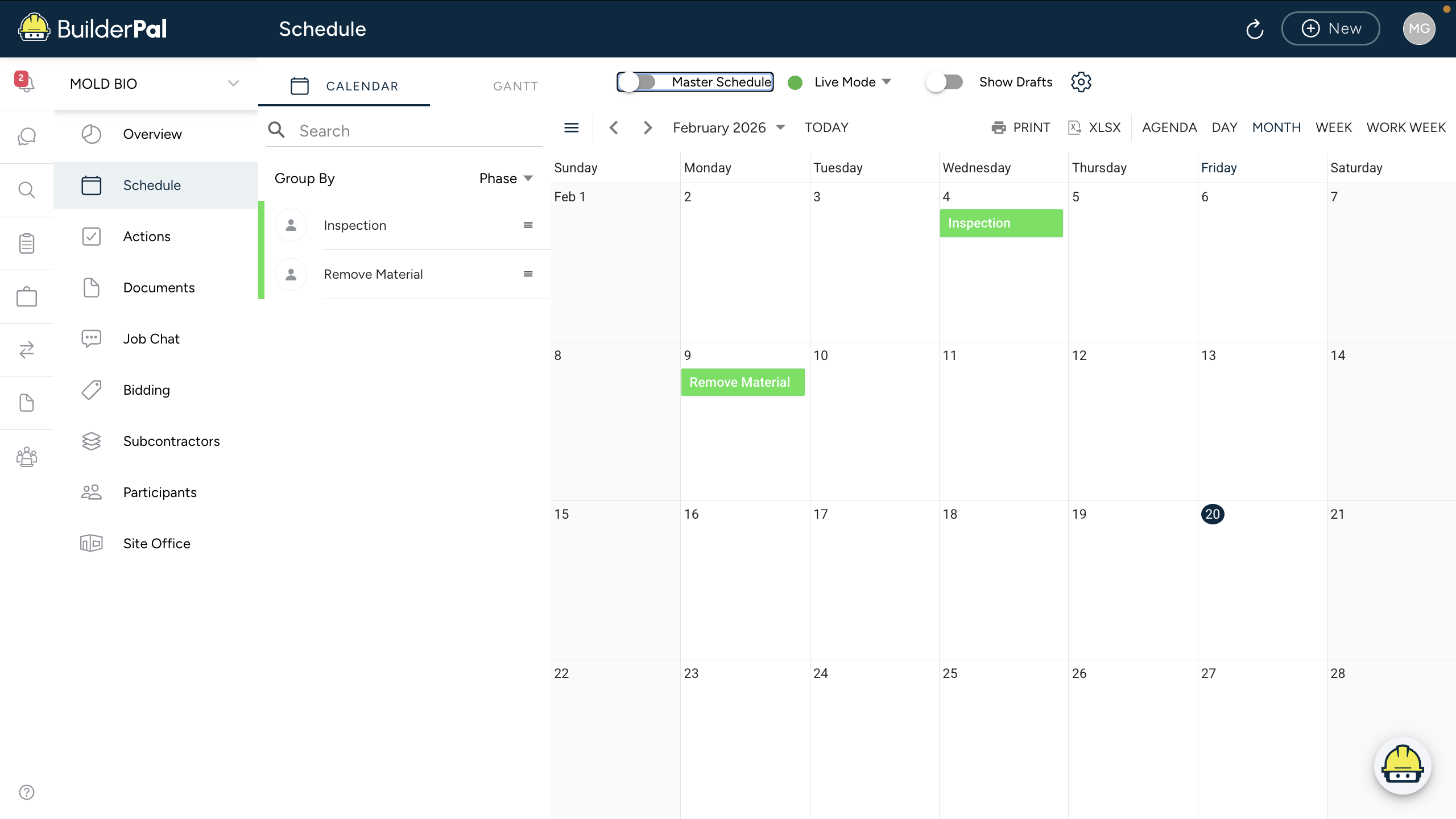
○ Instruction: Inside a project, click Schedule in the left sidebar to view the project's tasks and deadlines.
○ Screenshot: Insert immediately after the step to show the UI.

-
Switch Between Views
○ Instruction: Use the tabs at the top to switch between Calendar and Gantt views; select time periods like DAY, MONTH, or WEEK.
○ Screenshot: Only if not obvious.
-
Filter and Group Tasks
○ Instruction: Click Group By (e.g., Phase) to organize tasks; use Search or filters like Assigned Only to narrow down.
○ Screenshot: Only if not obvious.
-
View or Add Tasks
○ Instruction: Click on any task (e.g., "Inspection" or "Remove Material") to open details; use + New to add new scheduled actions.
○ Screenshot: Only if not obvious.
-
Print or Export the Schedule
○ Instruction: Click PRINT, XLSX, or other options at the top to export or print the schedule.
○ Screenshot: Only if not obvious.
Confirmation
“You’ll know it worked when the schedule loads with your project's tasks displayed in the chosen view, grouped by phase, with due dates and status visible.”
Tips
● Pro tip or best practice: Group by Phase to see the project lifecycle at a glance; use Gantt for timeline dependencies.
● Shortcut or time saver: Switch to Live Mode for real-time updates without refreshing.