
How Documents Work in BuilderPal
## Summary This tutorial covers creating folders and uploading documents within a BuilderPal project, enabling efficient organization and management of project-related files to streamline collaboration and access. ## How-To Video {{VIDEO_MODULE}} ## Prerequisites - A BuilderPal account with active login - An existing project in BuilderPal ## Steps 1. **Navigate to BuilderPal.** Go to https://app.builderpal.com and log in if necessary.  2. **Select a project.** Click on a project name to open it. 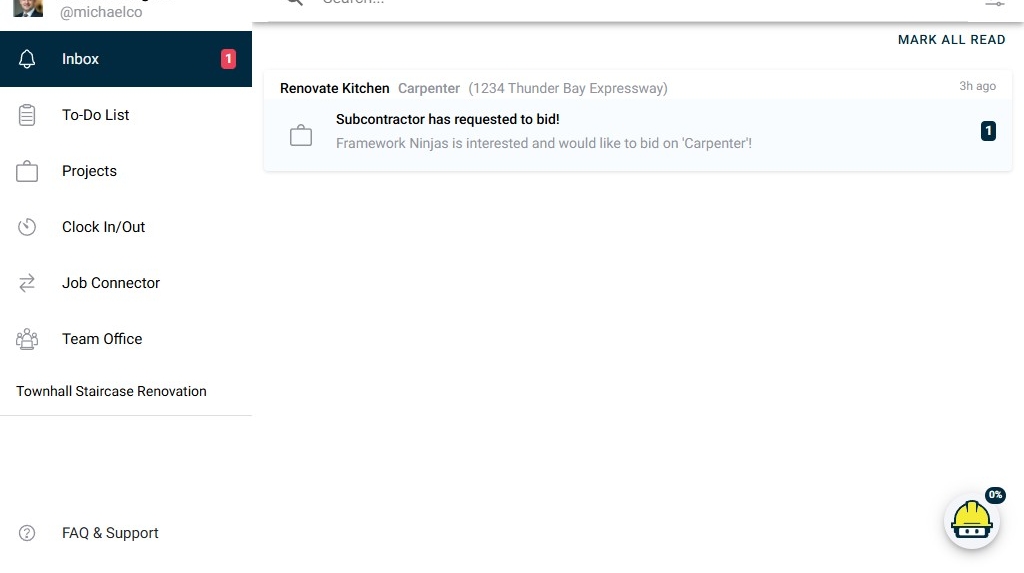 3. **Access documents.** Click **Documents**. 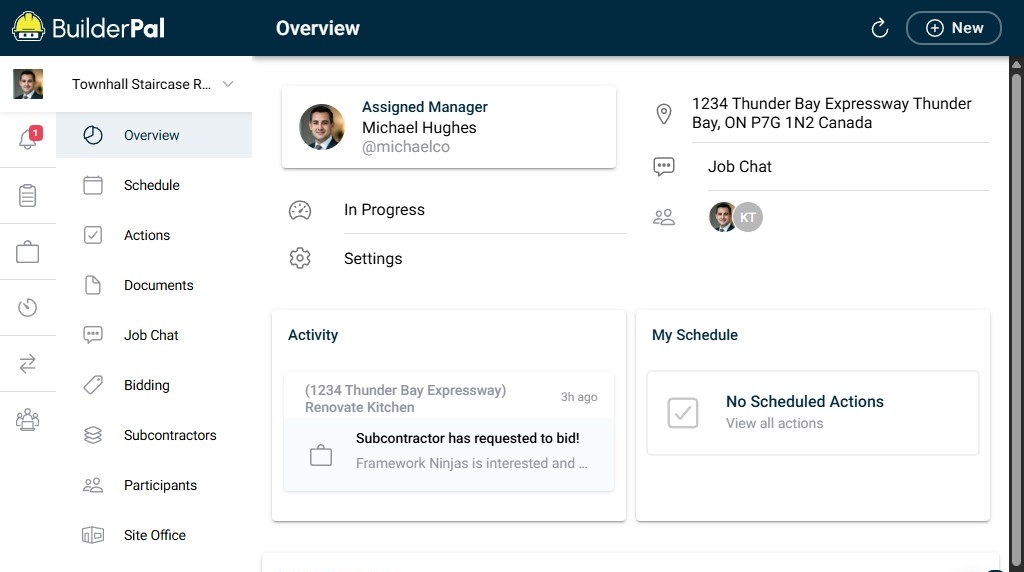 4. **Create a new folder.** Click **New folder**. 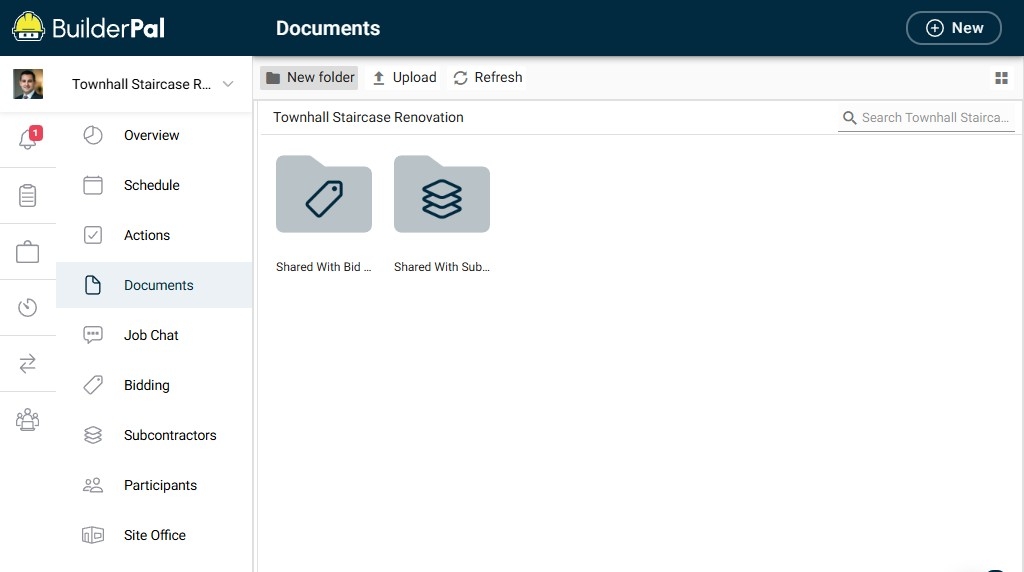 5. **Enter folder name field.** Click the **Enter folder name...** field.  6. **Name the folder.** Enter your desired folder name, such as "Blueprints". 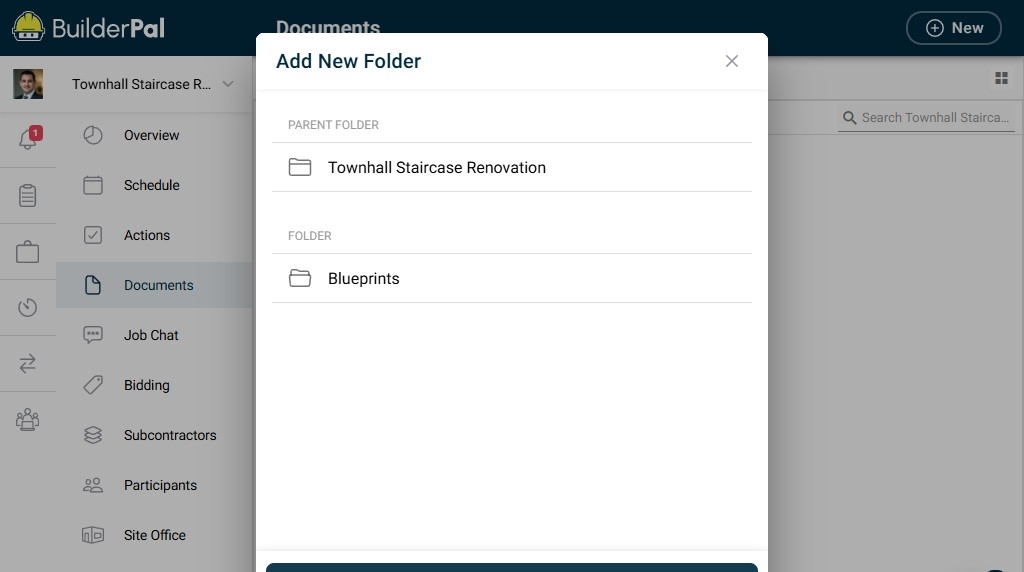 7. **Confirm folder creation.** Click **Create**.  8. **Open the new folder.** Double-click the folder, such as "Blueprints". 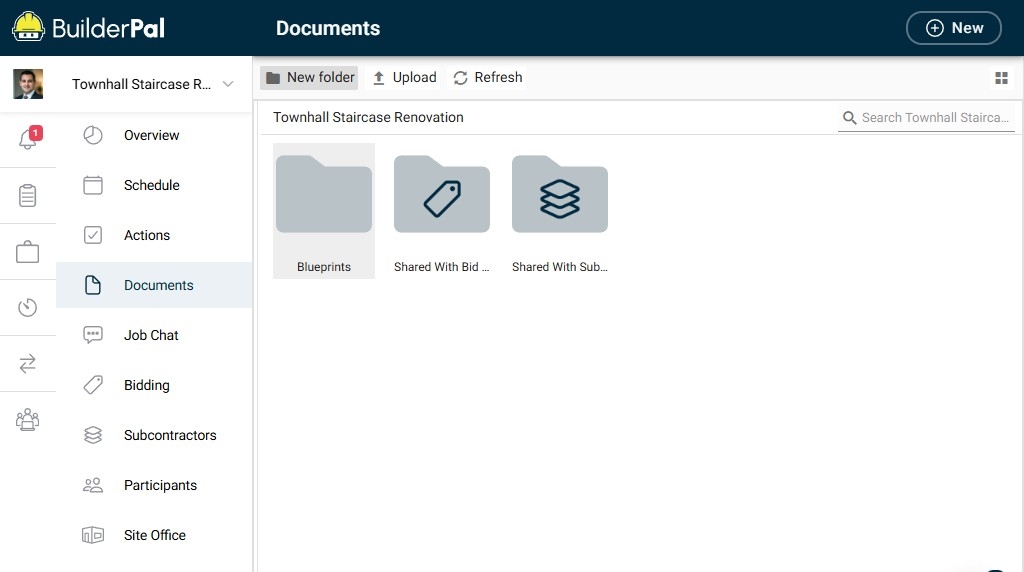 9. **Initiate upload.** Click **Upload**.  10. **Select files to add.** Click **Add files from device...**. 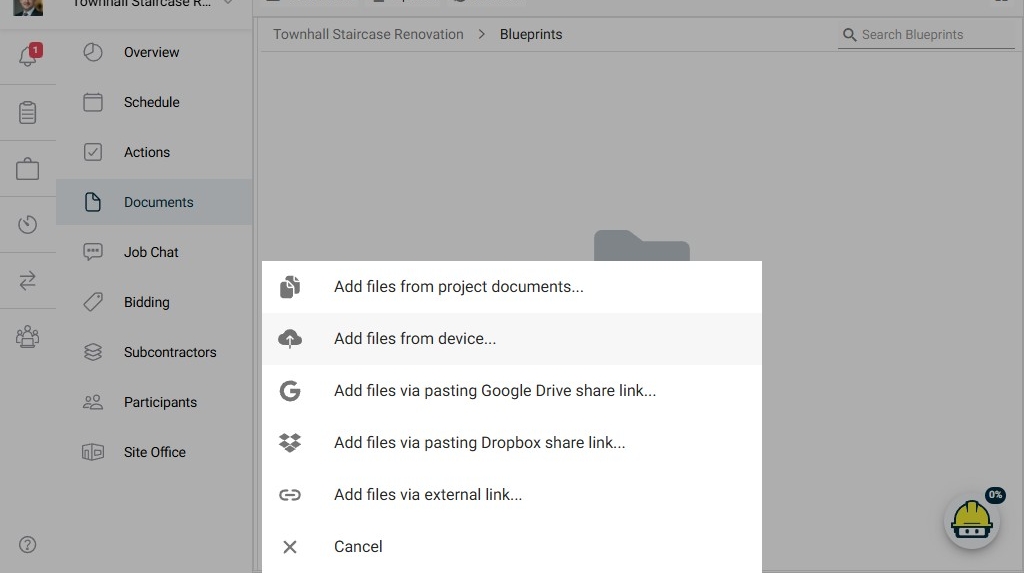 11. **Upload the selected file.** Choose a file from your device, such as "Townhall-Staircase-Blueprints.pdf", then click **Upload**. 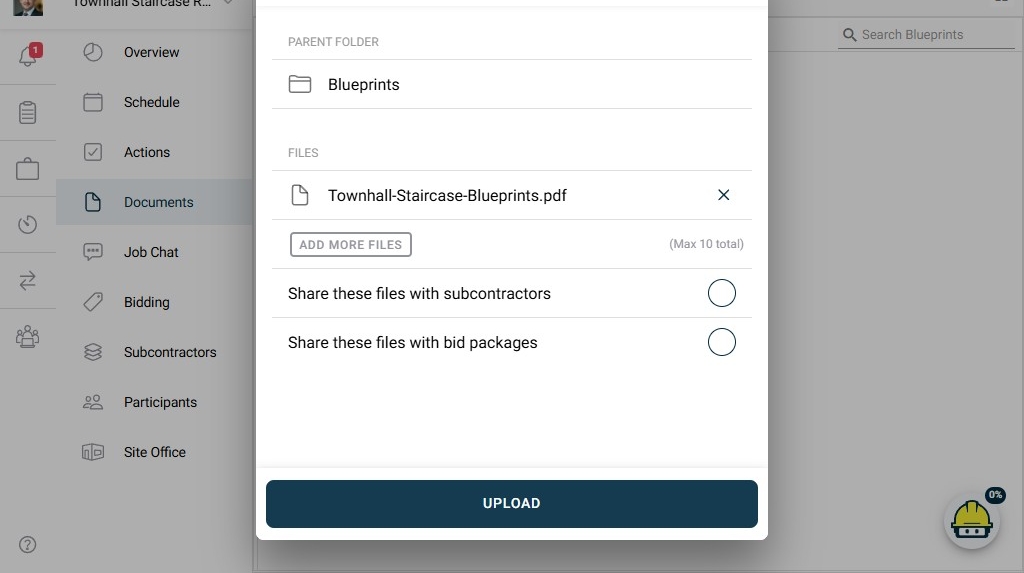 ## Confirmation The uploaded file appears in the folder list, ready for access or sharing within the project. ## FAQ ### Can I create subfolders within a folder? Yes, repeat the folder creation steps inside an existing folder to organize documents hierarchically. ### What file types does BuilderPal support for upload? BuilderPal supports common file types like PDFs, images, and documents; check the upload dialog for any restrictions. ### How do I rename a folder after creating it? Click the options menu next to the folder name and select "Rename" to update it. ### What happens if my upload fails? Ensure a stable internet connection and that the file size is within limits; try uploading again or contact support if issues persist. ### Can I delete uploaded documents? Yes, select the document, click the options menu, and choose "Delete" to remove it from the folder. ## Related Articles - [How to Create a Project](https://docs.builderpal.com/how-to-create-a-project) - [Managing Project Settings](https://docs.builderpal.com/managing-project-settings) - [Sharing Projects with Your Team](https://docs.builderpal.com/sharing-projects-with-your-team) - [BuilderPal File Security Overview](https://docs.builderpal.com/builderpal-file-security-overview) - [Uploading Photos to Projects](https://docs.builderpal.com/uploading-photos-to-projects) ## Metadata **Relevant Roles:** Builder, Project Manager, Team Member **Feature Area:** Documents **Article Type:** Workflow / Tutorial