
How Documents Work in BuilderPal

## Summary 
This tutorial covers creating folders and uploading documents within a BuilderPal project, enabling efficient organization and management of project-related files to streamline collaboration and access.

## How-To Video 
{{VIDEO_MODULE}}

## Prerequisites 
- A BuilderPal account with active login 
- An existing project in BuilderPal

## Steps 
1. **Navigate to BuilderPal.** Go to https://app.builderpal.com and log in if necessary.

    ![](https://ajeuwbhvhr.cloudimg.io/https://colony-recorder.s3.amazonaws.com/files/2025-11-26/48931aee-04bc-48d7-bee9-540e4c319512/ascreenshot.jpeg?tl_px=0,41&br_px=1024,614&force_format=jpeg&q=100)

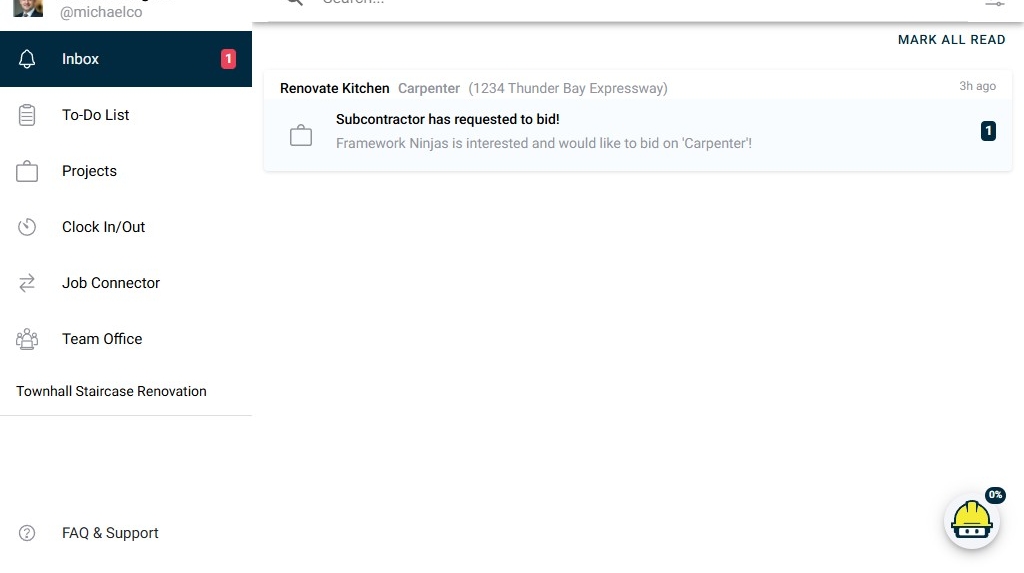
2. **Select a project.** Click on a project name to open it.
    ![](https://ajeuwbhvhr.cloudimg.io/https://colony-recorder.s3.amazonaws.com/files/2025-11-26/48931aee-04bc-48d7-bee9-540e4c319512/ascreenshot.jpeg?tl_px=0,83&br_px=1024,656&force_format=jpeg&q=100)

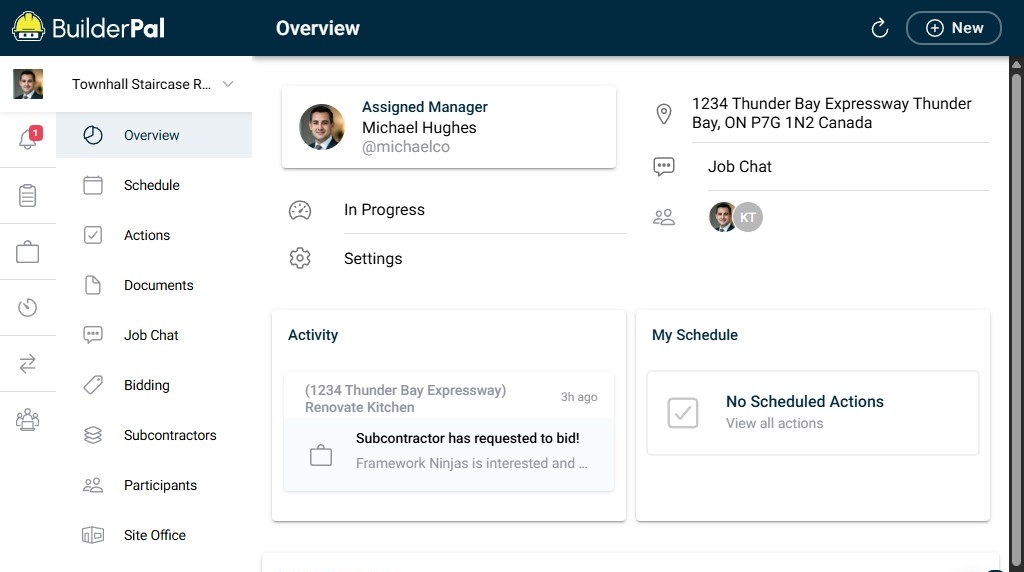
3. **Access documents.** Click **Documents**.
    ![](https://ajeuwbhvhr.cloudimg.io/https://colony-recorder.s3.amazonaws.com/files/2025-11-26/5b1ddf94-7074-4392-ad7f-3db966d56be0/ascreenshot.jpeg?tl_px=0,0&br_px=1024,572&force_format=jpeg&q=100)

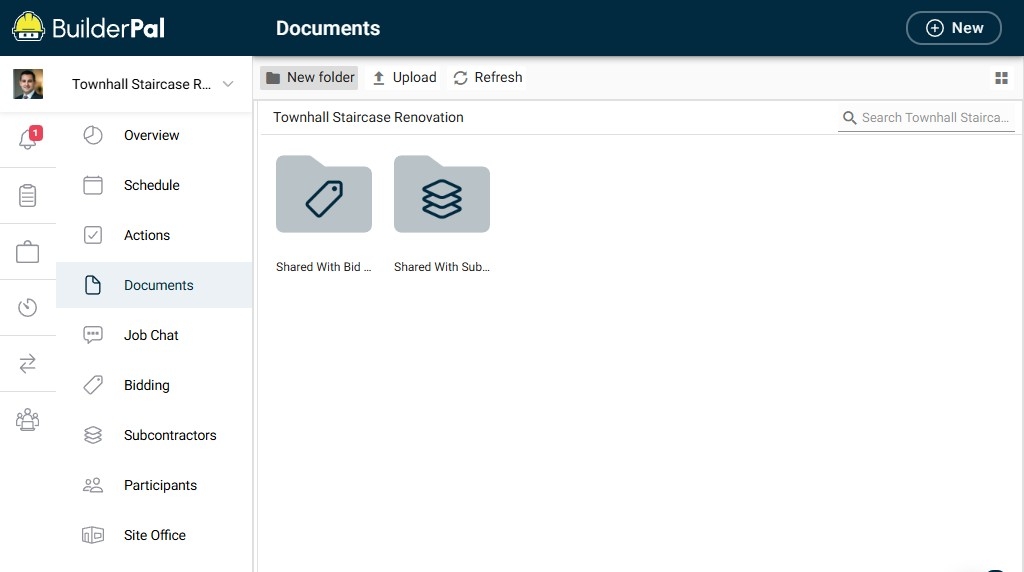
4. **Create a new folder.** Click **New folder**.
    ![](https://ajeuwbhvhr.cloudimg.io/https://colony-recorder.s3.amazonaws.com/files/2025-11-26/a4792454-f4cf-4a33-b197-dc856685be8c/ascreenshot.jpeg?tl_px=0,0&br_px=1024,572&force_format=jpeg&q=100)

5. **Enter folder name field.** Click the **Enter folder name...** field.

    ![](https://ajeuwbhvhr.cloudimg.io/https://colony-recorder.s3.amazonaws.com/files/2025-11-26/72040dc1-8905-4007-ba6f-aa35be298aad/ascreenshot.jpeg?tl_px=0,0&br_px=1024,572&force_format=jpeg&q=100)

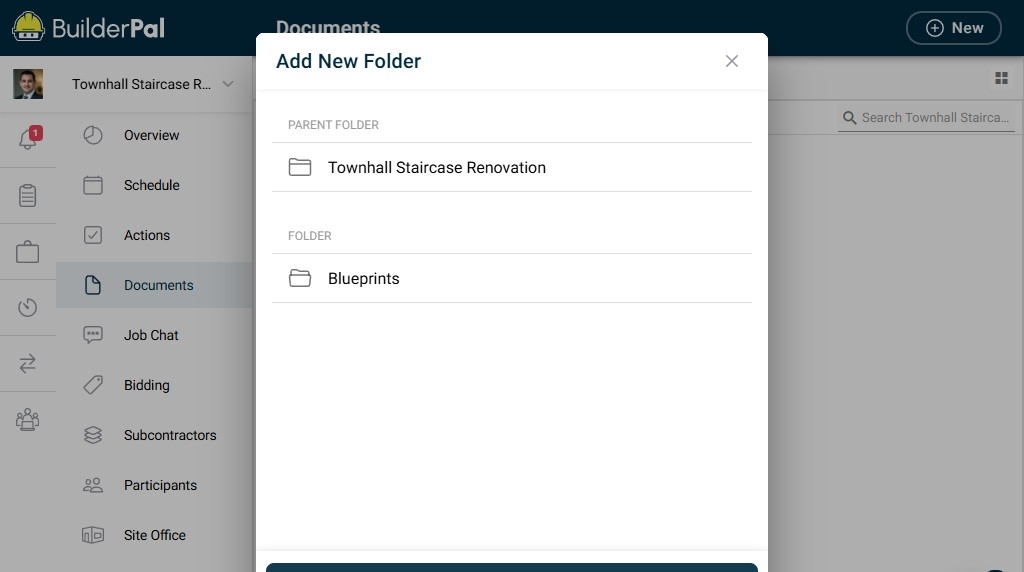
6. **Name the folder.** Enter your desired folder name, such as "Blueprints".
    ![](https://ajeuwbhvhr.cloudimg.io/https://colony-recorder.s3.amazonaws.com/files/2025-11-26/9db940df-0cbc-4428-96db-e927a12da67a/ascreenshot.jpeg?tl_px=0,0&br_px=1024,572&force_format=jpeg&q=100)

7. **Confirm folder creation.** Click **Create**.

    ![](https://ajeuwbhvhr.cloudimg.io/https://colony-recorder.s3.amazonaws.com/files/2025-11-26/9238c855-6d12-4f18-a018-6fd4cc5a0176/ascreenshot.jpeg?tl_px=0,83&br_px=1024,656&force_format=jpeg&q=100)

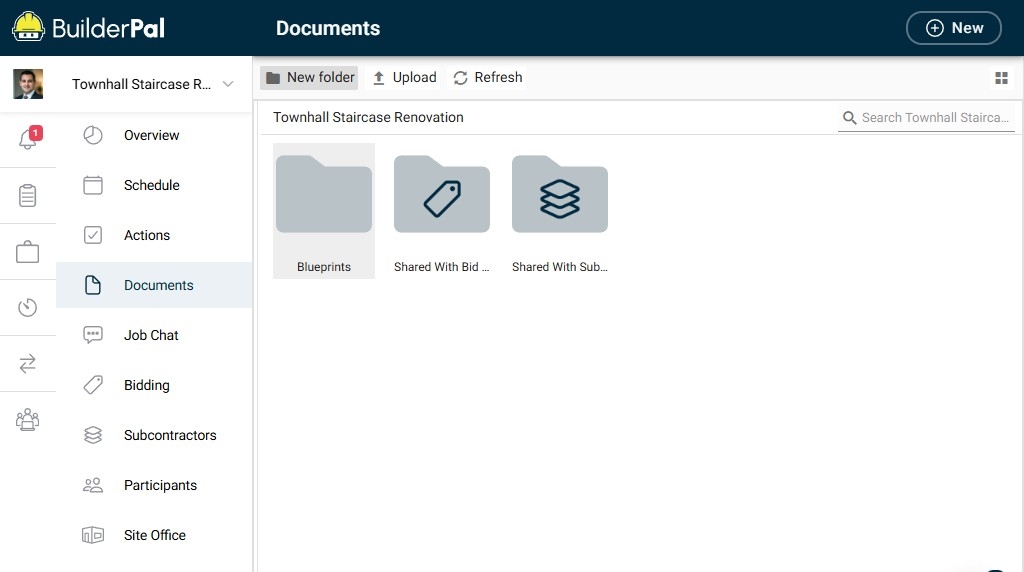
8. **Open the new folder.** Double-click the folder, such as "Blueprints".
    ![](https://ajeuwbhvhr.cloudimg.io/https://colony-recorder.s3.amazonaws.com/files/2025-11-26/005fa652-f63b-4818-bd8a-542de451f32b/ascreenshot.jpeg?tl_px=0,0&br_px=1024,572&force_format=jpeg&q=100)

9. **Initiate upload.** Click **Upload**.

    ![](https://ajeuwbhvhr.cloudimg.io/https://colony-recorder.s3.amazonaws.com/files/2025-11-26/3659922c-4cfe-4038-a2bd-9d1c88cab1bc/ascreenshot.jpeg?tl_px=0,0&br_px=1024,572&force_format=jpeg&q=100)

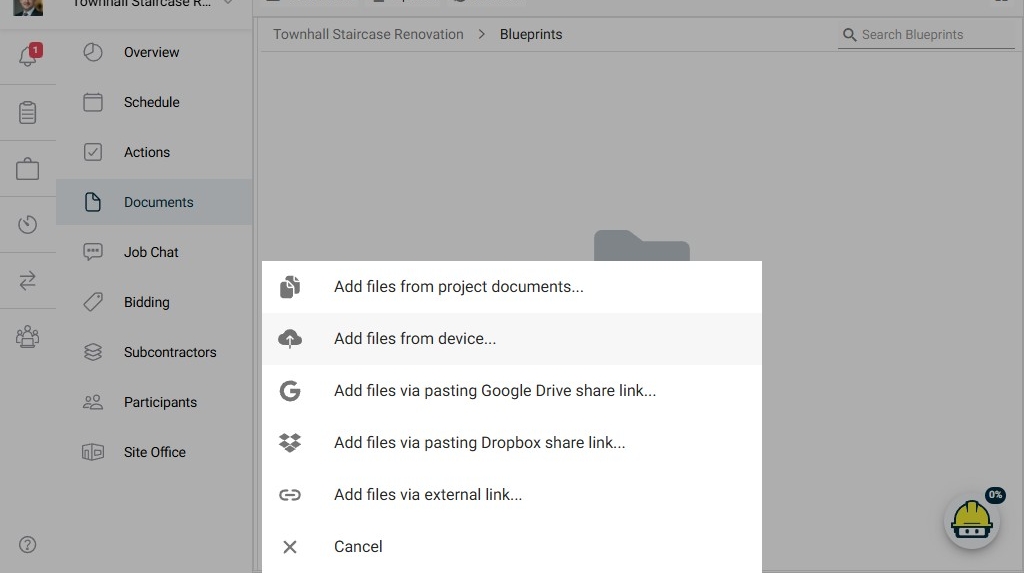
10. **Select files to add.** Click **Add files from device...**.
    ![](https://ajeuwbhvhr.cloudimg.io/https://colony-recorder.s3.amazonaws.com/files/2025-11-26/cb655659-f95b-468c-8281-a26f1c5e917b/ascreenshot.jpeg?tl_px=0,83&br_px=1024,656&force_format=jpeg&q=100)

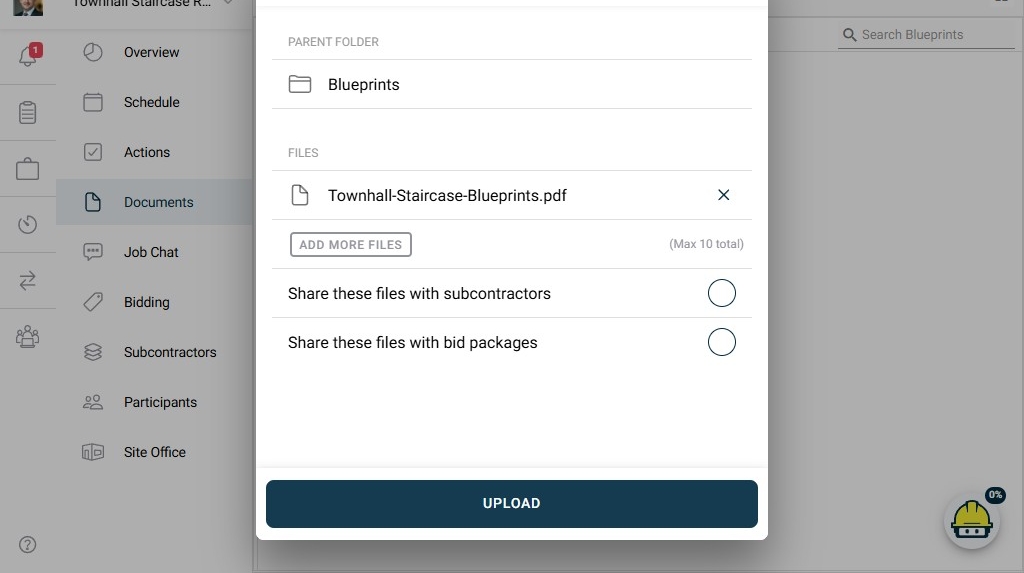
11. **Upload the selected file.** Choose a file from your device, such as "Townhall-Staircase-Blueprints.pdf", then click **Upload**.
    ![](https://ajeuwbhvhr.cloudimg.io/https://colony-recorder.s3.amazonaws.com/files/2025-11-26/fe955bdd-3fc9-45ff-a651-ed6ea0e999f5/ascreenshot.jpeg?tl_px=0,83&br_px=1024,656&force_format=jpeg&q=100)

## Confirmation 
The uploaded file appears in the folder list, ready for access or sharing within the project.

## FAQ 
### Can I create subfolders within a folder? 
Yes, repeat the folder creation steps inside an existing folder to organize documents hierarchically.

### What file types does BuilderPal support for upload? 
BuilderPal supports common file types like PDFs, images, and documents; check the upload dialog for any restrictions.

### How do I rename a folder after creating it? 
Click the options menu next to the folder name and select "Rename" to update it.

### What happens if my upload fails? 
Ensure a stable internet connection and that the file size is within limits; try uploading again or contact support if issues persist.

### Can I delete uploaded documents? 
Yes, select the document, click the options menu, and choose "Delete" to remove it from the folder.

## Metadata 
**Relevant Roles:** Builder, Project Manager, Team Member  
**Feature Area:** Documents  
**Article Type:** Workflow / Tutorial