
Create & Assign Actions
Summary
This tutorial guides you through creating and assigning actions in BuilderPal, such as scheduled work or other task types. Actions help organize tasks, assign responsibilities, and keep projects on track by notifying team members and integrating with schedules.
How-To Video
Prerequisites
- Access to a project in BuilderPal.
- Team members or subcontractors available for assignment.
Steps
-
Navigate to your project. Go to https://app.builderpal.com/project/

-
Open the New dropdown and select Action. This opens the action creation menu.

-
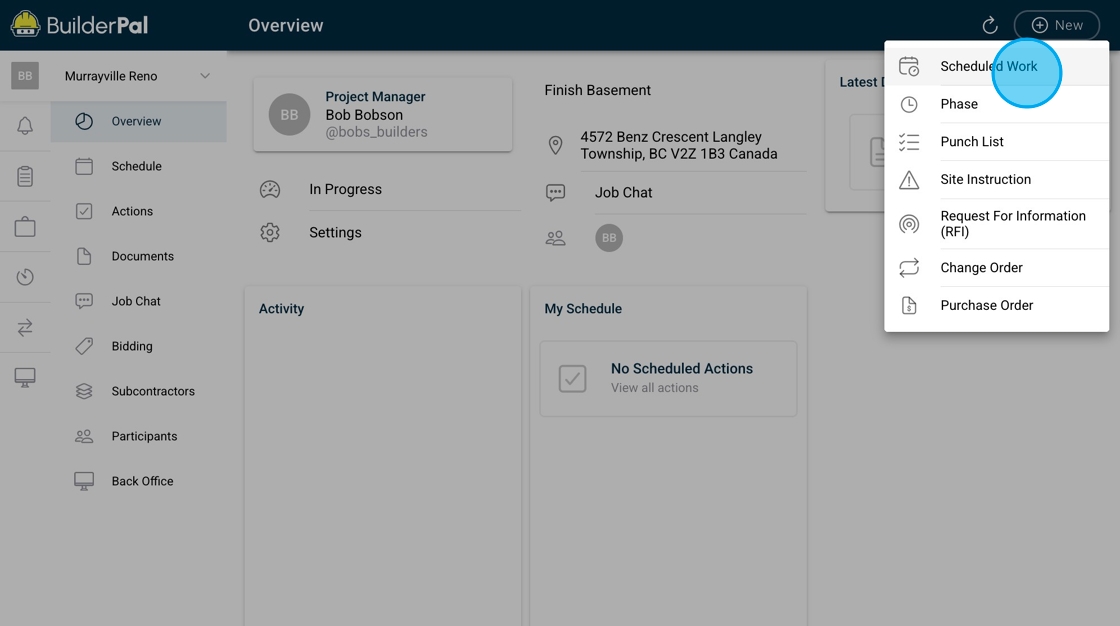
Choose the action type. Select from the list, such as Scheduled Work for time-bound tasks.
-

Enter the title and details. Provide a clear title and any additional information needed for the action.
-

Set dates if applicable. For scheduled work actions, add start and end dates; refer to specific action guides for other types.
-

Assign the action. Click Assign Scheduled Work (or equivalent) to choose a team member or subcontractor.
-

Add participants. Include others who need updates on the action's progress.
-
Publish the action. Click Publish to save and notify assignees.

-

Review and interact. The action appears in the actions page and schedule; add comments or files as needed.
Confirmation
You can now make comments, add files and more! You can also view in your actions page and schedule. The assignee and participants will be notified in their inboxes.
FAQ
Q: Can I assign an action to multiple people?
A: Yes, select multiple assignees during the assignment step, or add participants for updates without primary responsibility.
Q: What happens if I forget to set dates for a scheduled work action?
A: The action will still create, but it won't appear on calendars until dates are added via editing.
Q: How do notifications work for assigned actions?
A: Assignees and participants receive inbox notifications; check the Inbox Feed for updates.
Q: Is there a limit to the number of actions per project?
A: No limit in BuilderPal Free, but organize them effectively using filters on the Actions page.
Q: Can I create custom action types?
A: Currently, use the predefined types; suggest new ones via support for future updates.