
Navigating the Mobile App
How to Navigate the Mobile App in BuilderPal
Workflow / Tutorial
Summary
This guide walks you through the main areas of the BuilderPal mobile app so you know where everything is and how to move around quickly.
Prerequisites
Steps
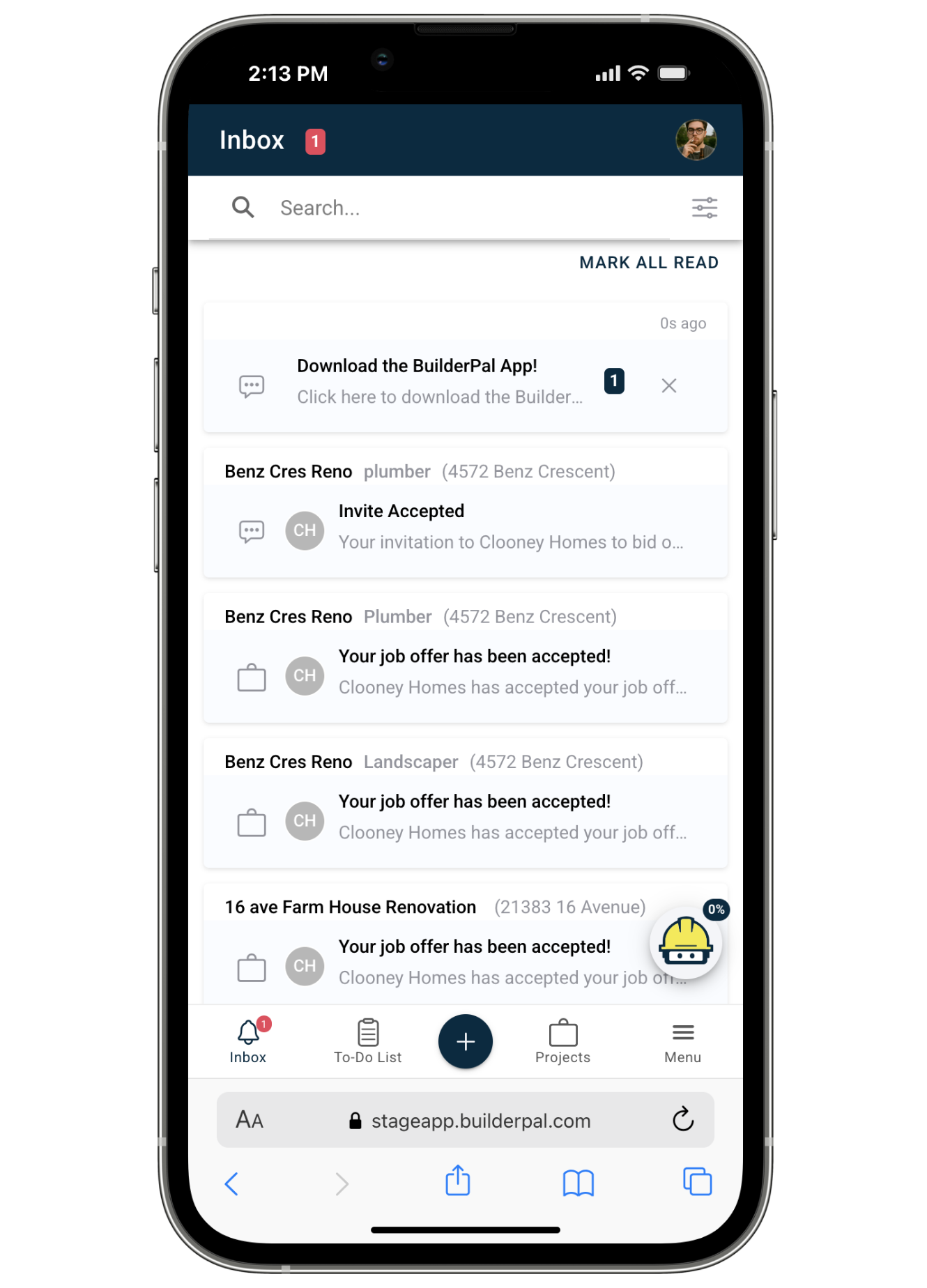
1. Start on the Inbox (Home Screen)
This is the first screen you'll see after logging in. It shows updates from your projects.
Use the Inbox to:
- View activity across your projects
- Open invitations, approvals, messages, and updates
- Jump directly into a project or action by tapping any row
2. Use the Bottom Navigation Bar
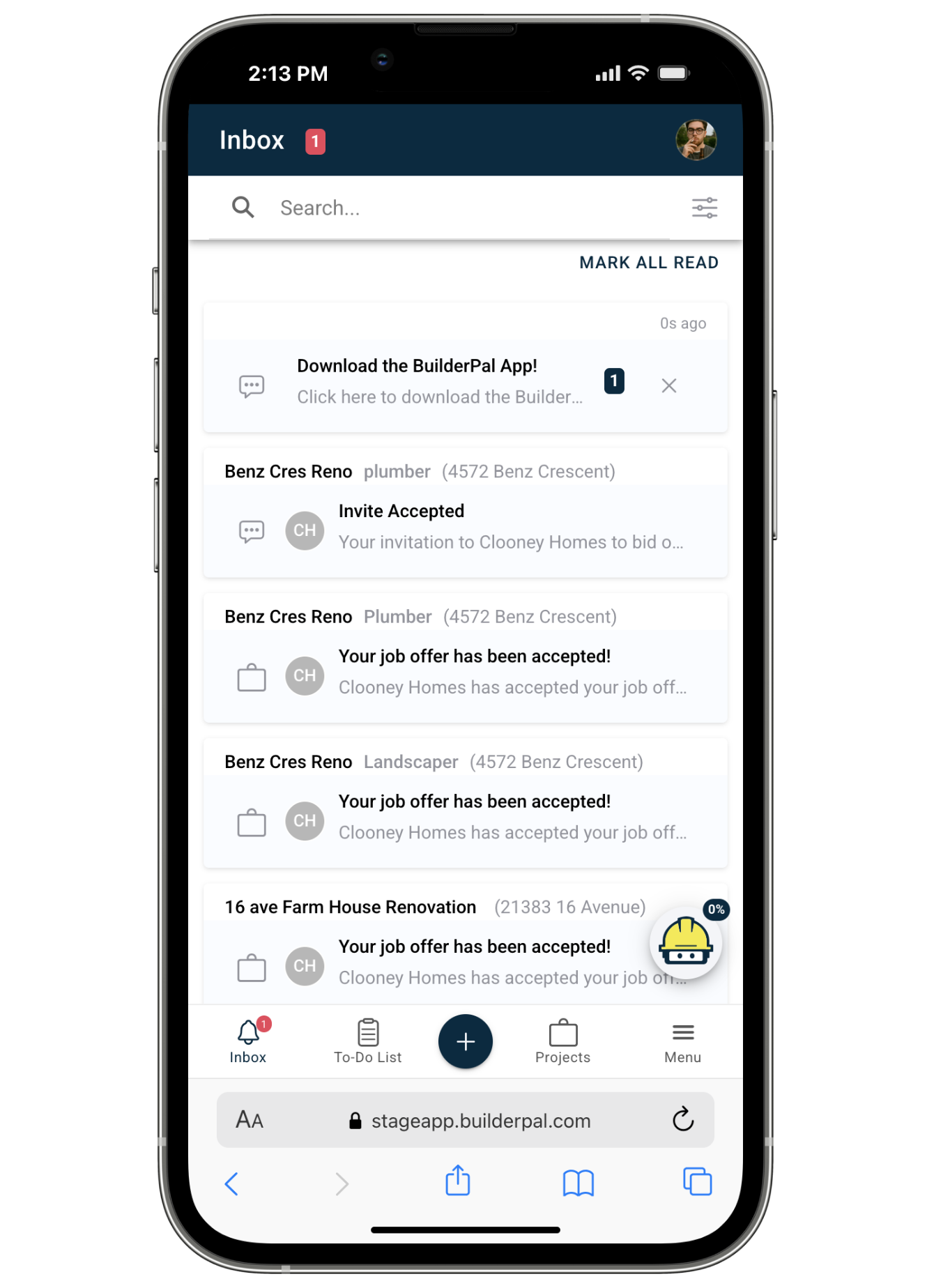
The bottom bar is always visible and gives you access to the main parts of the app.
It includes:
- Inbox – Your main activity feed
- To-Do List – Tasks assigned to you
- + – Quick Actions panel
- Projects – List of all jobs you have access to
- Menu – Global tools + project tools
 You’ll use these five buttons to get almost everywhere.
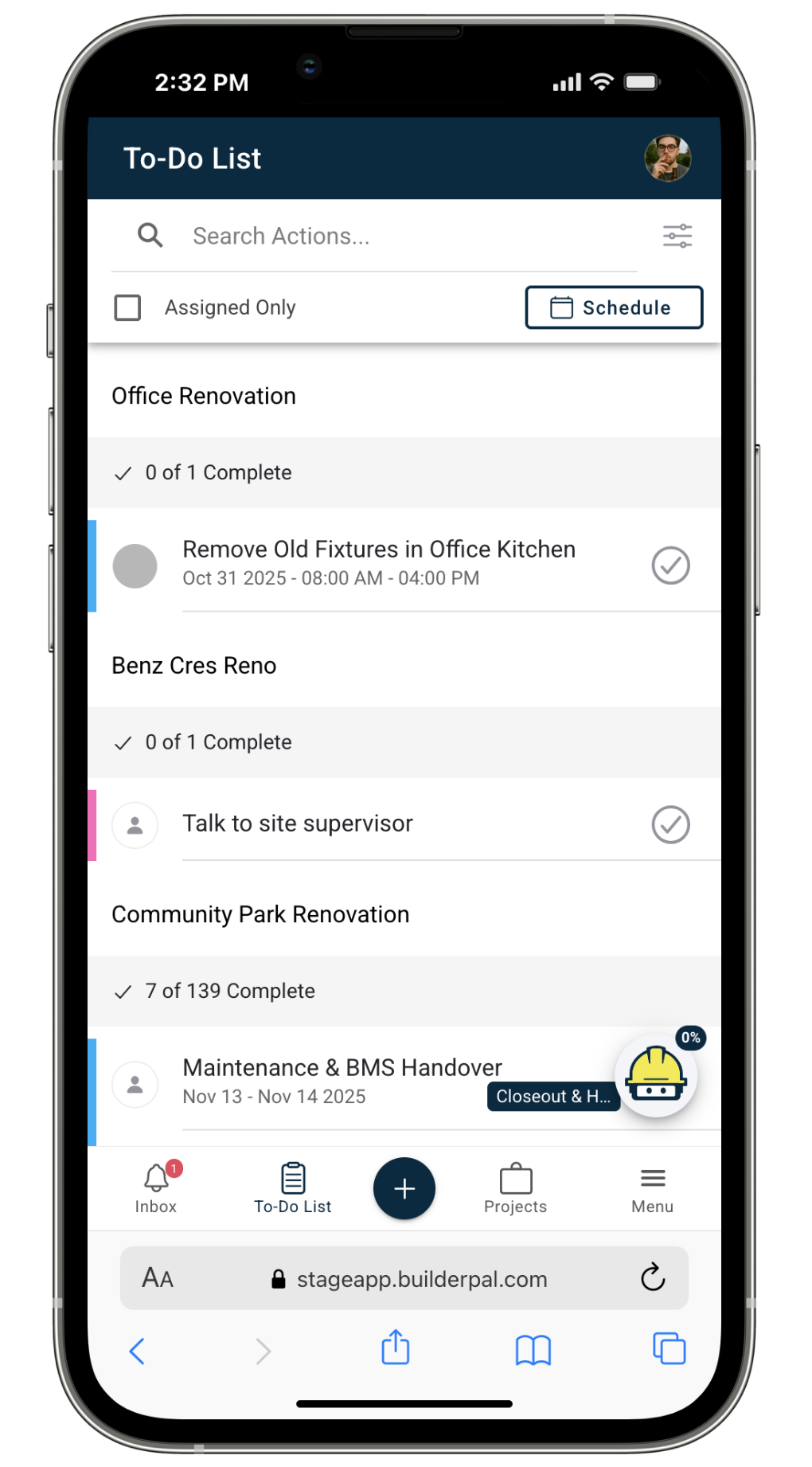
3. Open Your To-Do List
The To-Do List tab shows all personal tasks assigned to you.
You can:
- View everything you need to complete
- Tap a task to open its details
- Jump into the related project or action
4. Browse Your Projects
Tap Projects to open your full project list.
From here, you can:
- Scroll through all projects
- Tap any project to open it
- Use the + Quick Actions menu to open that project’s tools
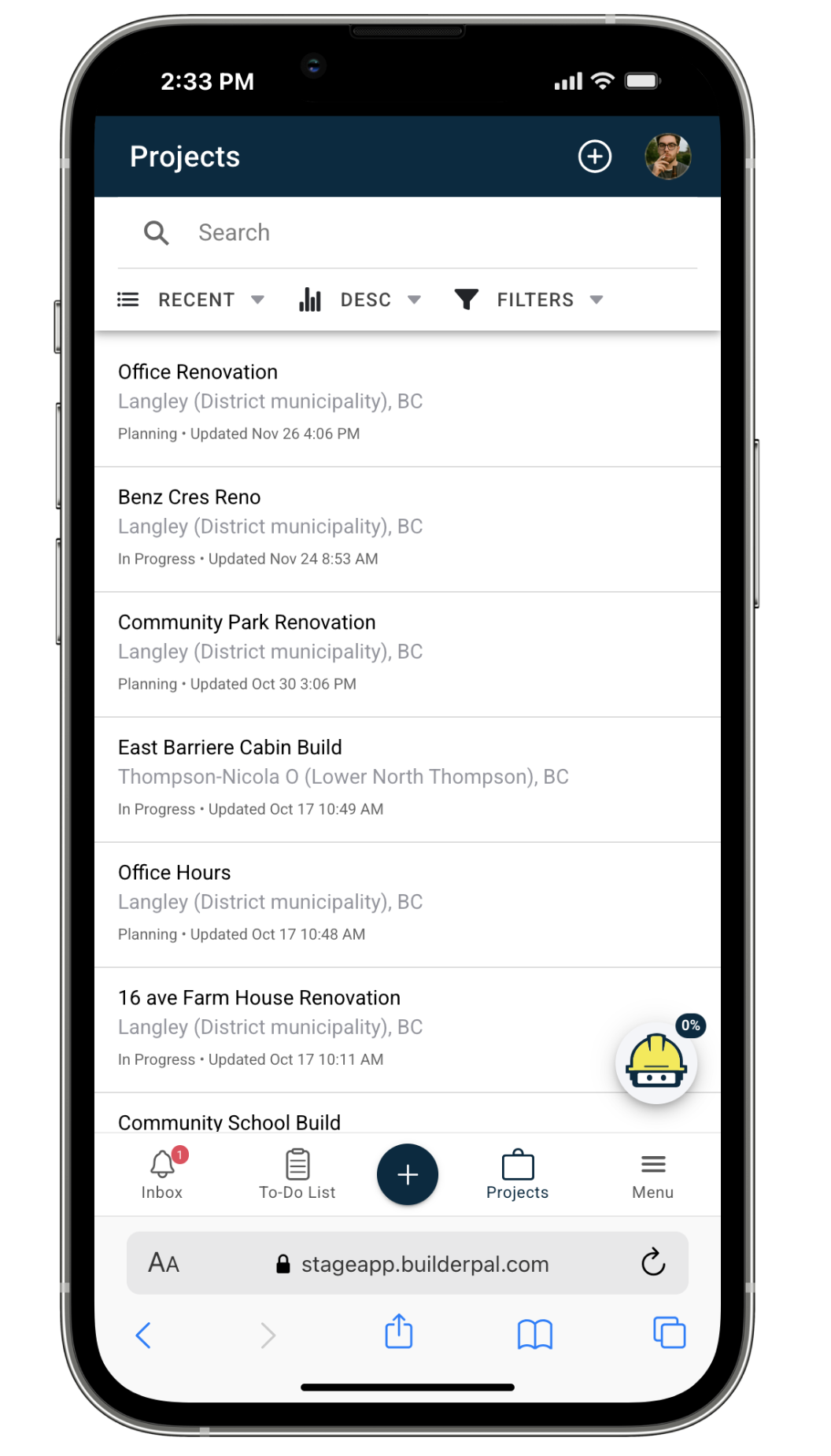
Once a project is selected, it will appear automatically inside the Quick Actions panel.
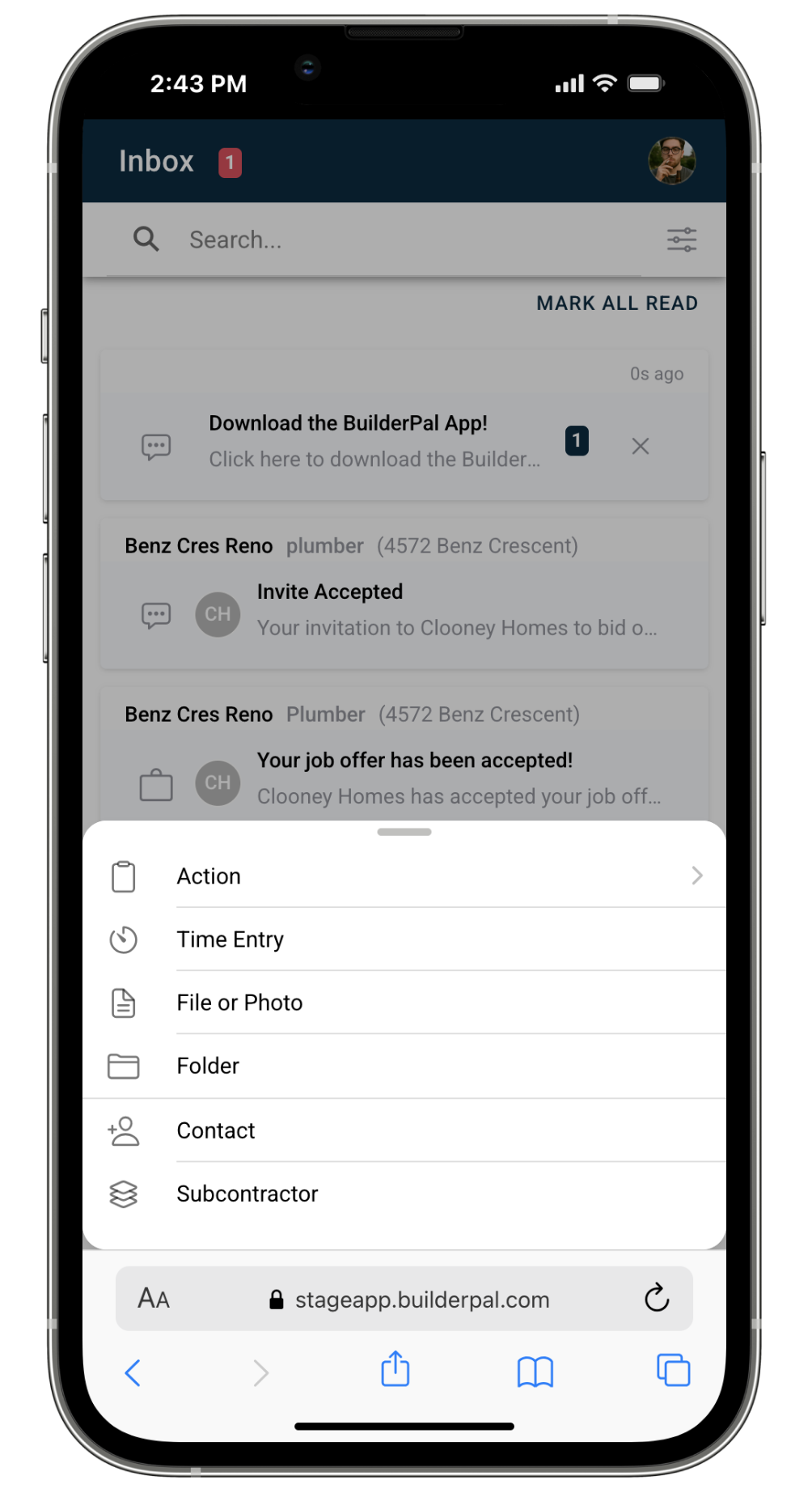
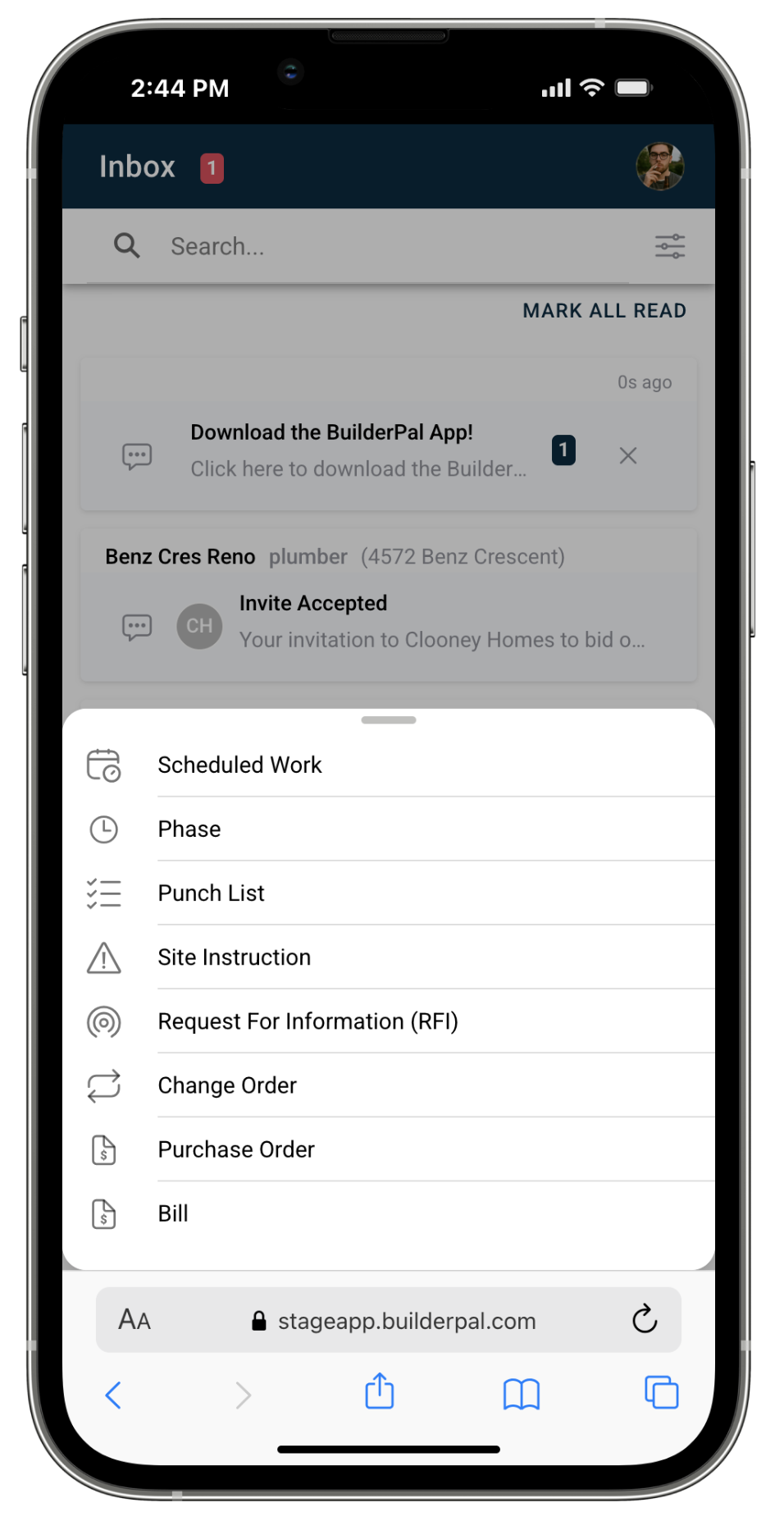
5. Use the + (Quick Actions) Button
When you tap +, you will see creation options such as:
- Action
- Time Entry
- File or Photo
- Folder
- Contact
- Subcontractor
- Scheduled Work
- Phase
- Punch List
- Site Instruction
- Request for Information (RFI)
- Change Order
- Purchase Order
- Bill
6. Use the Menu (Project & Global Tools)
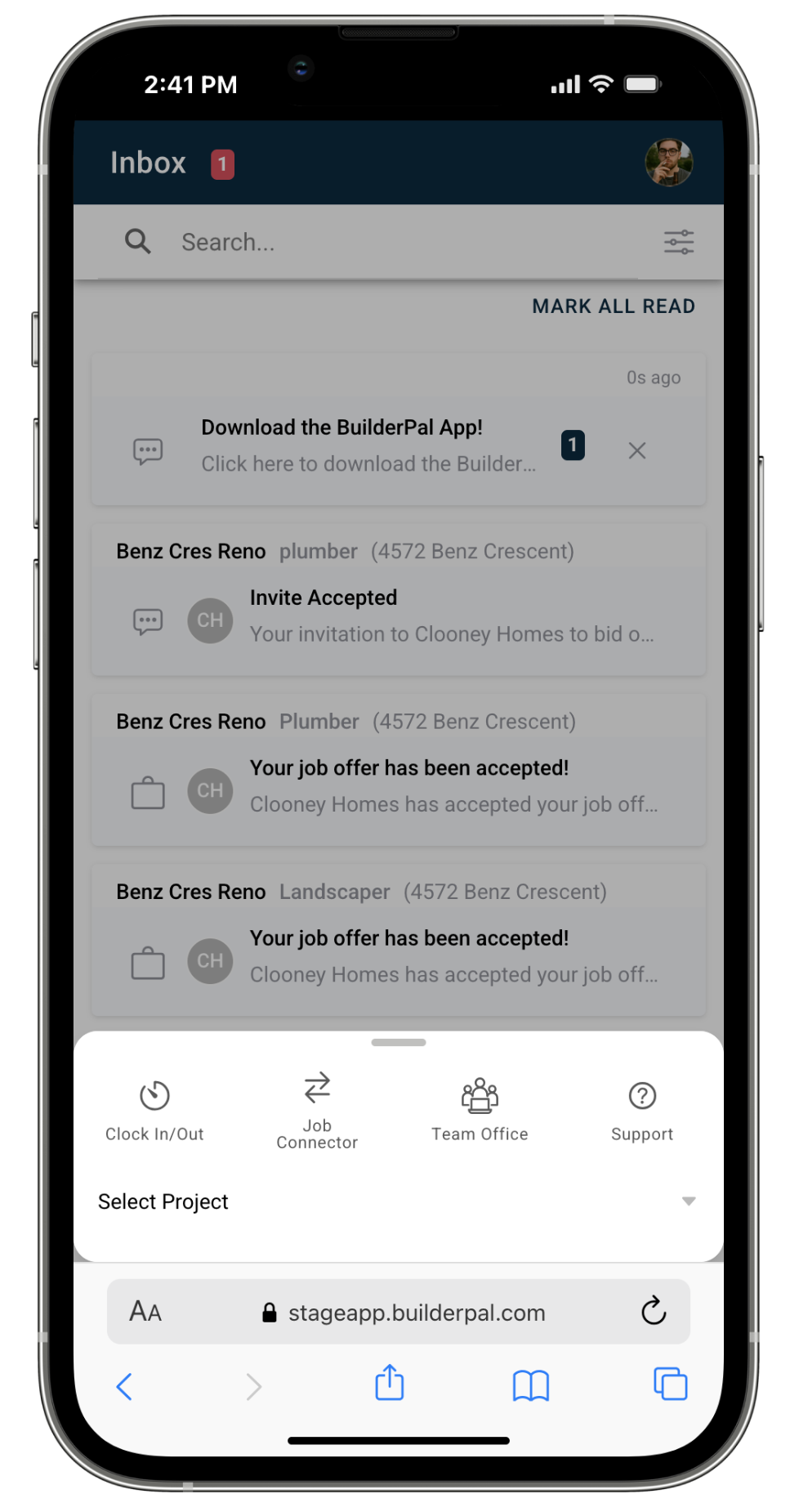
This panel contains:
A. Global Tools (always visible)
- Clock In/Out
- Job Connector
- Team Office
- Support
B. Project Tools (after selecting a project)
If no project is selected, you’ll see Select Project first.
Once a project is selected, you’ll see tools for that project:
- Overview
- Schedule
- Actions
- Documents
- Job Chat
- Participants
- Site Office
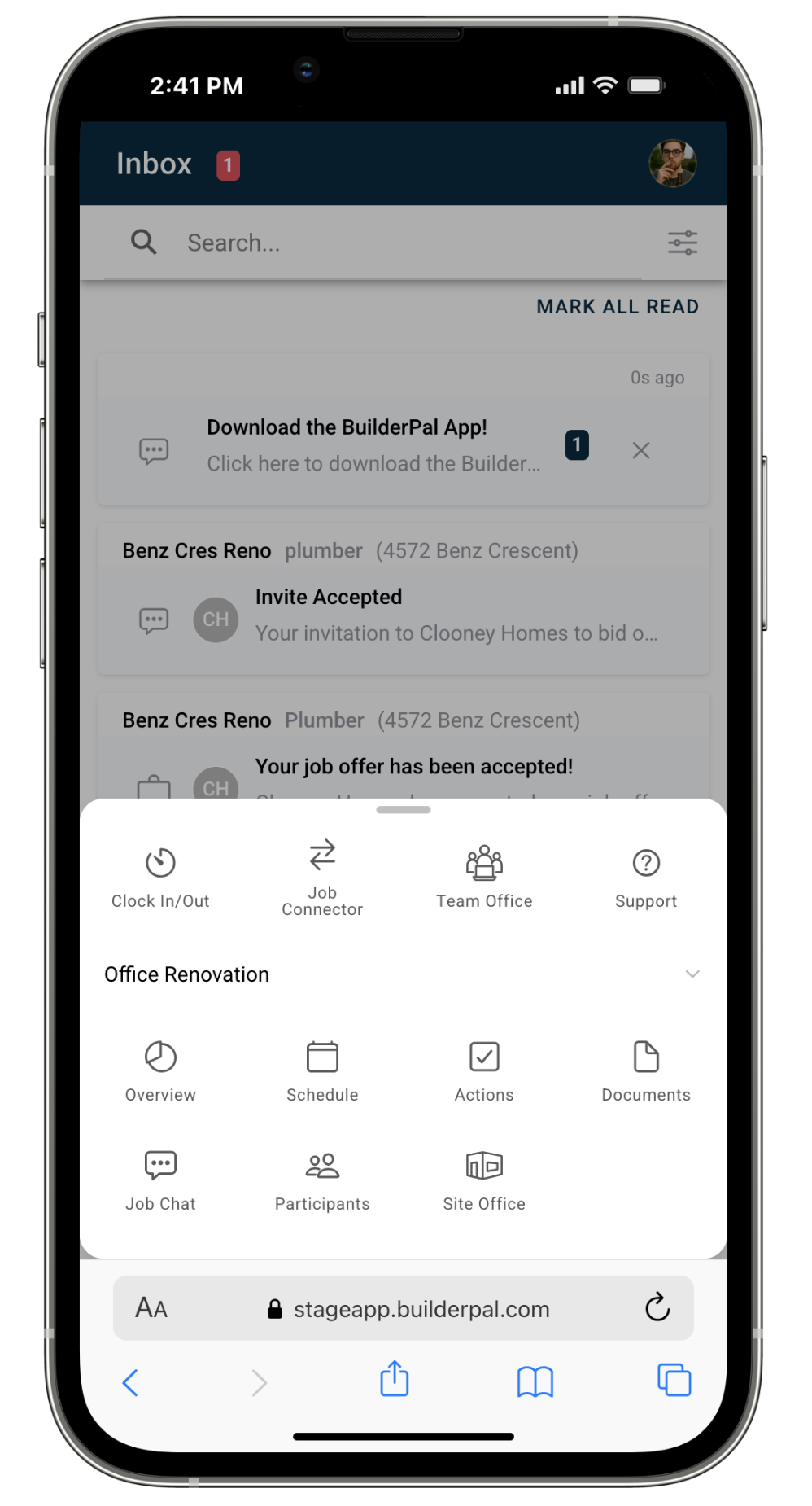
This is where you go to navigate into any part of a project.
7. Accessing User Settings (Profile Icon in the Top Right)
To edit your account details, notifications, or preferences, tap your profile picture in the top-right corner of any screen.
This opens:
- Profile info
- Email & username
- Pro access (if applicable)
- Fast Start Guides
- Notification preferences
- Logout

Account settings are not part of the Menu tab.
Confirmation
You’ll know you understand the app layout when you can easily move between:
- Inbox → Project → Tools
- Projects → Quick Actions → Overview/Actions/Documents/etc.
- Inbox → + → Clock In/Out
- Profile Icon → Account Settings