
Punch Lists
Summary
This tutorial covers how to create and manage punch lists in BuilderPal to track and resolve final project issues, ensuring smooth project closeout and efficient team collaboration.
Prerequisites
- Role: Team Project Manager, Team Member, or Team Supervisor
- An active project set up in BuilderPal
- Mobile device access for field tasks (recommended)
Steps
There are two ways to create a punch list in BuilderPal: from the project overview or from the Actions tab.
Method 1: From the Project Overview
- Log in to BuilderPal and select your project. — Open the BuilderPal app, enter your credentials, and choose the project from the dashboard.
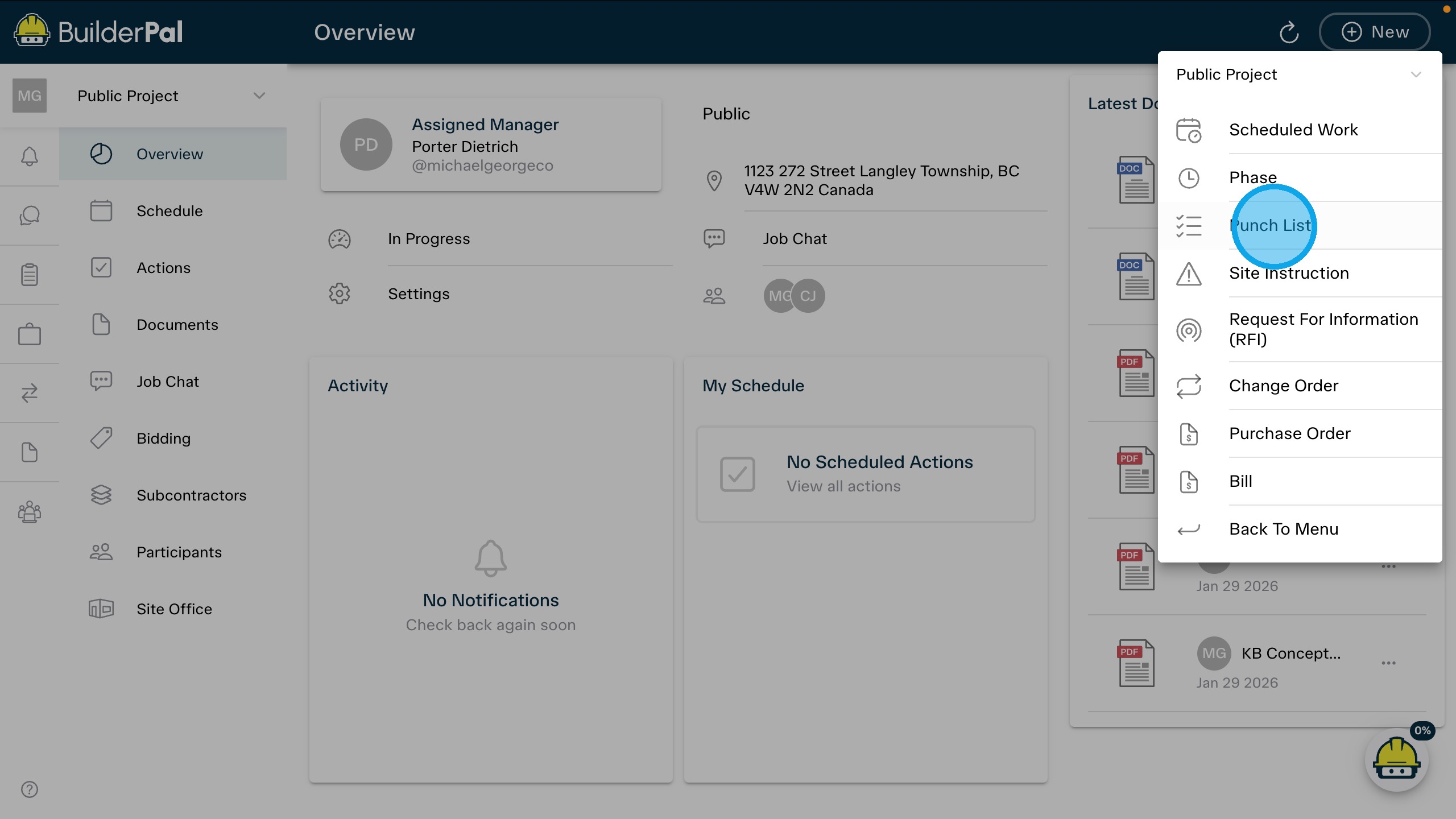
- Access the project menu. — In the project overview screen, locate the dropdown menu next to the project name in the top right corner
- Select Punch List. — Click on Punch List from the dropdown options to open the punch list creation interface.
Method 2: From the Actions Tab
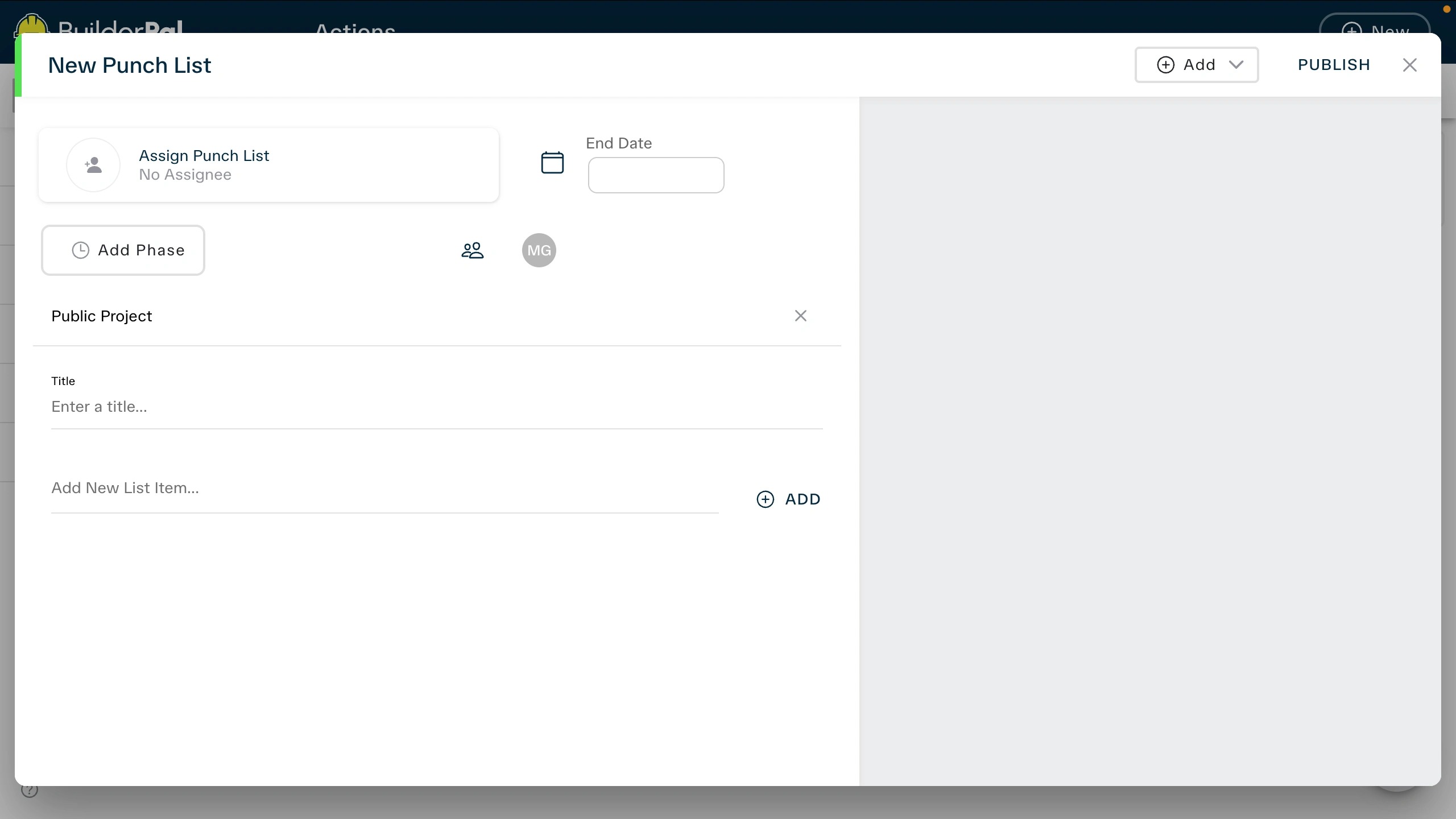
- Save the punch list item. — Review the information and click Save to add the item and notify the team.
Confirmation
You'll know it worked when the new item appears in the punch list overview, and the assigned team member receives a push notification or email alert.
FAQ
Q: What types of issues should I include in a punch list? A: Include minor fixes like touch-up paint, hardware adjustments, or clean-up tasks that don't require major rework, based on project inspections.
Q: Can I edit a punch list item after saving? A: Yes, tap the item in the list, make changes to description, assignee, or status, then save again.
Q: How do I mark a punch list item as complete? A: Open the item and tap Mark as Complete; you can add verification photos for records.
Q: Why can't I see punch lists for a project? A: Ensure you have the correct role permissions; if not, contact your team admin to adjust access.
Q: Is there a limit to the number of punch list items per project? A: No limit, but organize them by category or location for better management.
Related Articles
- Punch Lists Overview
- Assigning Tasks to Team Members
- Project Closeout Best Practices
- Troubleshooting Notifications
- Mobile App Features
Upgrade to BuilderPal Pro for this feature → https://www.builderpal.com/pro