
Team Office and Site Office: What’s the Difference?
Summary
BuilderPal offers two primary workspaces: Team Office for administrative and management tasks, and Site Office for on-site operations. This article explains the key differences to help you choose the right one for your role and tasks.
How It Helps
Team Office streamlines back-office processes, enabling efficient project setup, team coordination, and financial oversight.
Site Office supports field teams by facilitating real-time updates, approvals, and communication, reducing delays and improving productivity on the job site.
Team Office: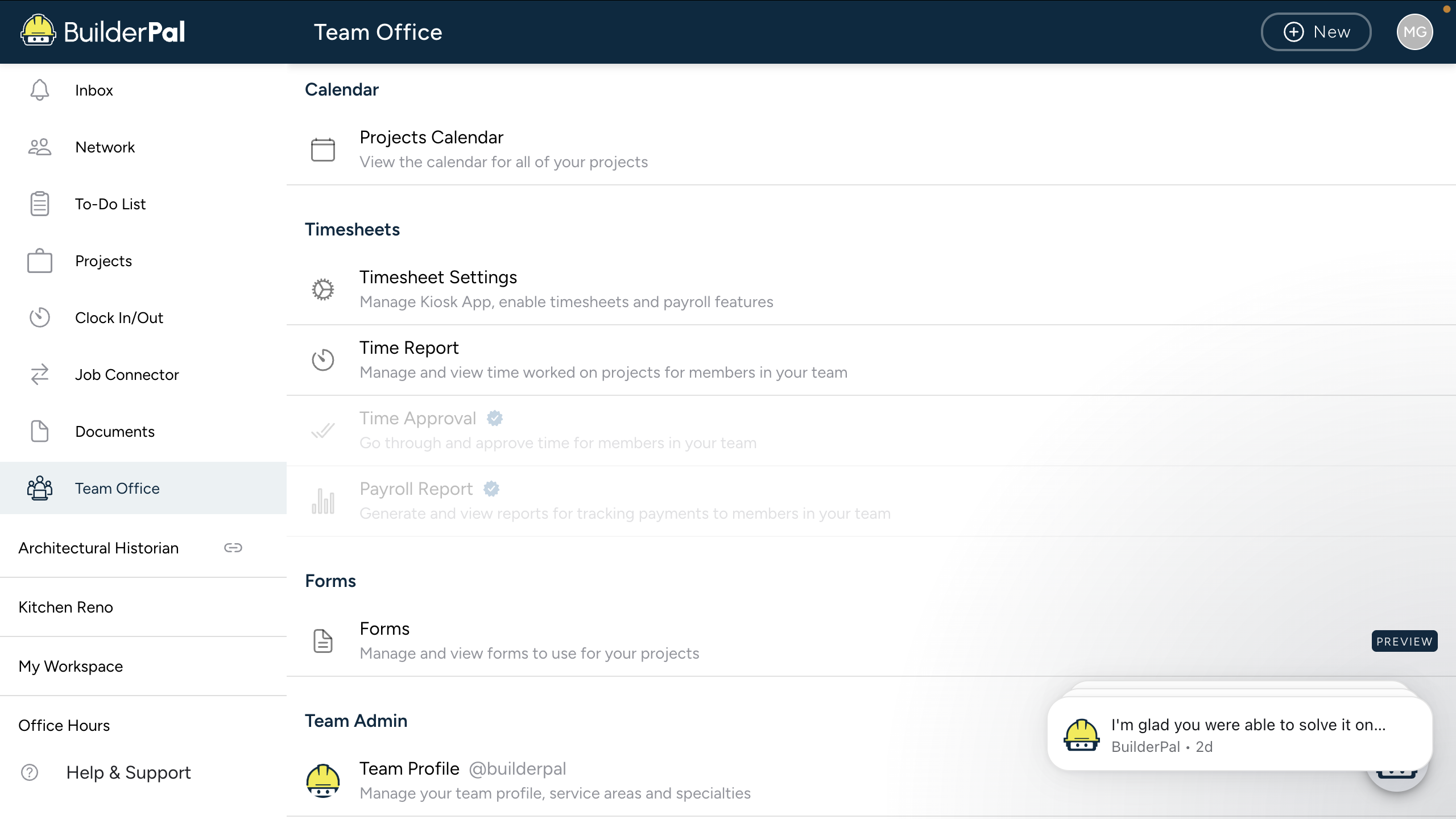
How It Works
Team Office is designed for desktop use, providing tools for comprehensive management like permissions, cost codes, and finance. Site Office is optimized for mobile, focusing on field activities such as time tracking, punch lists, messaging, and uploads. While some features overlap, the interfaces are tailored to the environment—detailed views in Team Office and quick-access actions in Site Office.
When to Use
Use Team Office for office-based tasks like setting up projects, managing teams, or handling finances. Switch to Site Office for field work, including logging time, creating punch lists, or approving uploads on the go. For hybrid features like bid packages or documents, start with Team Office for planning and use Site Office for execution.
Site Office: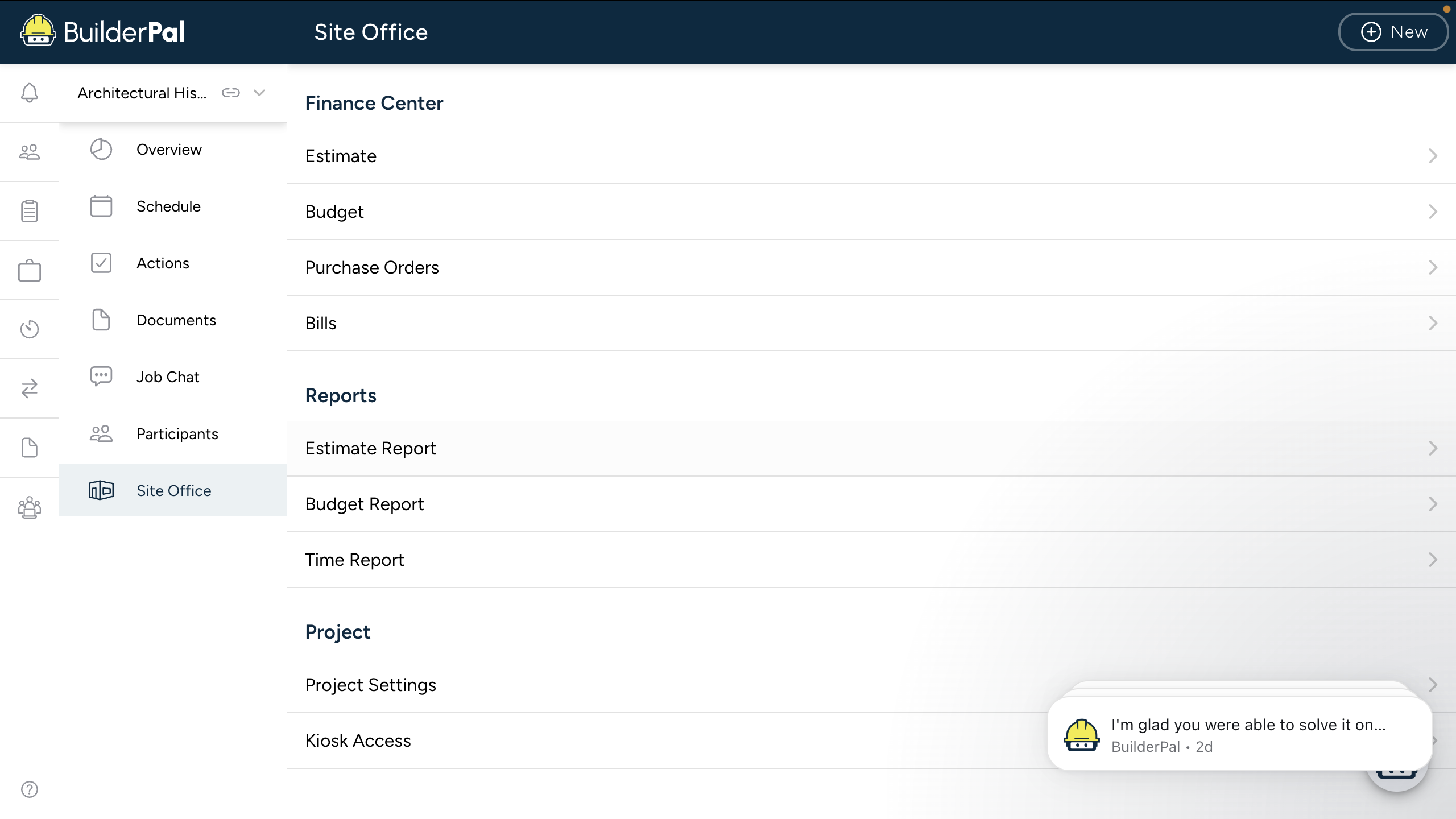
Next Steps
Review your role's permissions and explore the relevant workspace. If needed, follow tutorials on setting up teams or tracking time.
FAQ
What if I need access to both Team Office and Site Office? Most roles have access to both; switch via the app menu based on your current task.
Are there differences in features between the two? Core features are available in both, but Site Office prioritizes mobile-friendly tools for field use, while Team Office offers advanced desktop views for admin tasks.
Can I use Site Office on desktop or Team Office on mobile? Yes, but the experience is optimized as described—mobile for Site Office field tasks and desktop for Team Office management.
How do permissions differ between Team Office and Site Office? Permissions are role-based across both, but Site Office may limit advanced edits to ensure quick field operations.
What happens if workflows differ between mobile and desktop? For hybrid features, refer to specific tutorials; differences are minimal but noted where relevant.