
RFI's
Summary
This tutorial covers how to create and manage Requests for Information (RFIs) in BuilderPal to seek clarifications on project details, ensuring timely resolutions and maintaining project documentation.
Prerequisites
- Role or permission needed
- An active project set up in BuilderPal
- Relevant details like question description, drawings, or specs ready for attachment
Steps
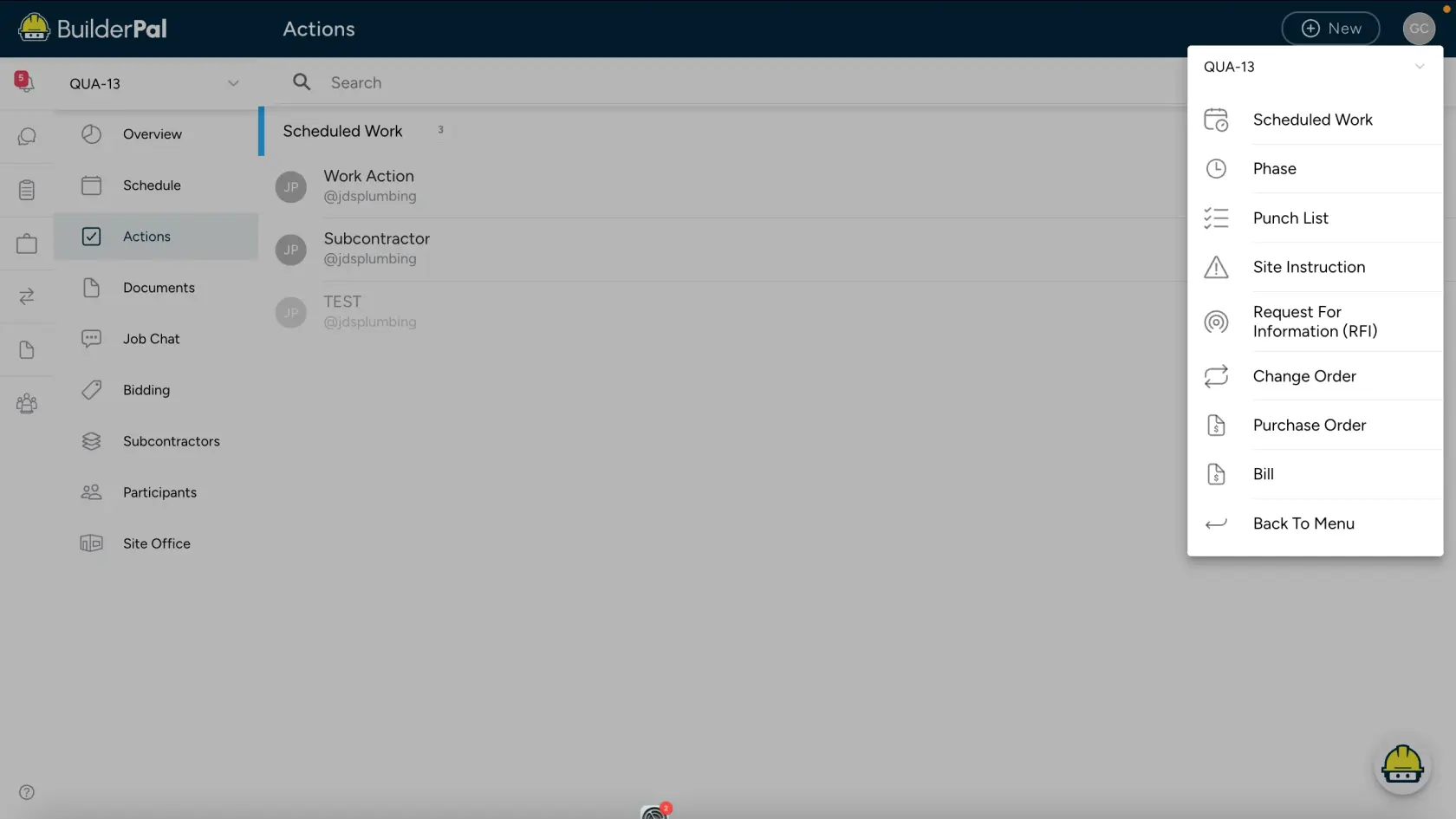
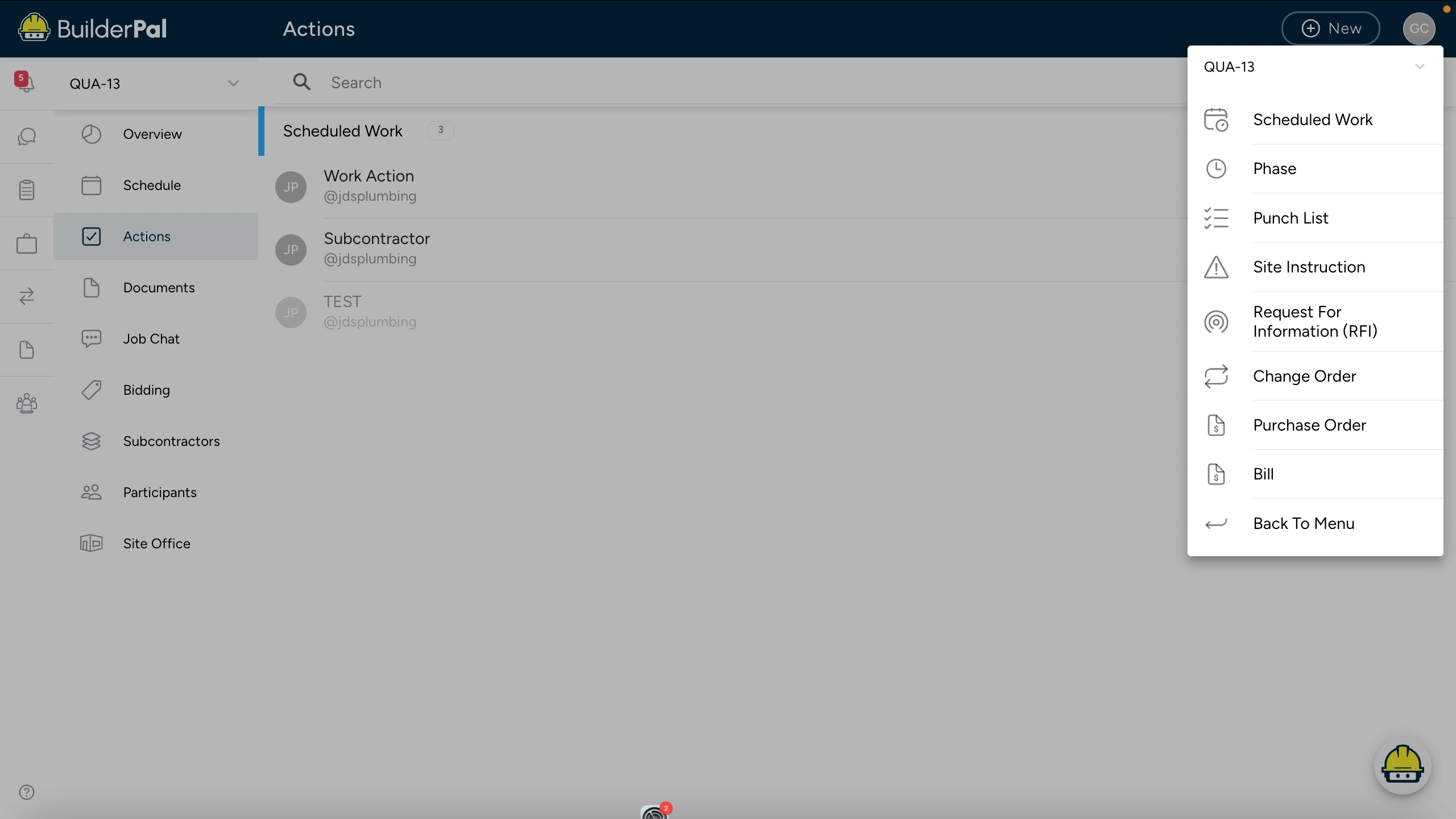
There are two ways to create an RFI in BuilderPal: from the project overview or from the Actions tab.
Method 1: From the Project Overview
-
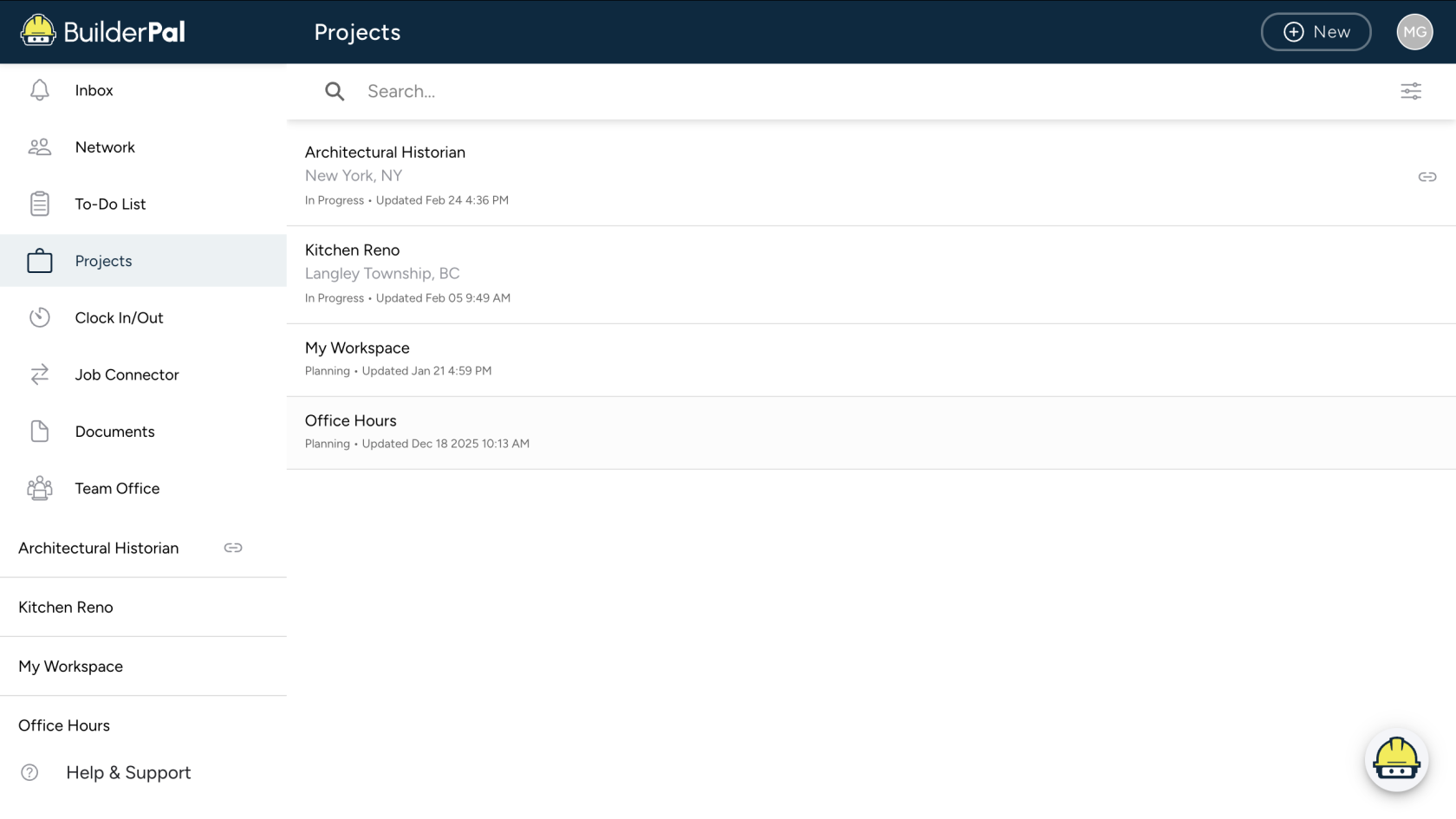
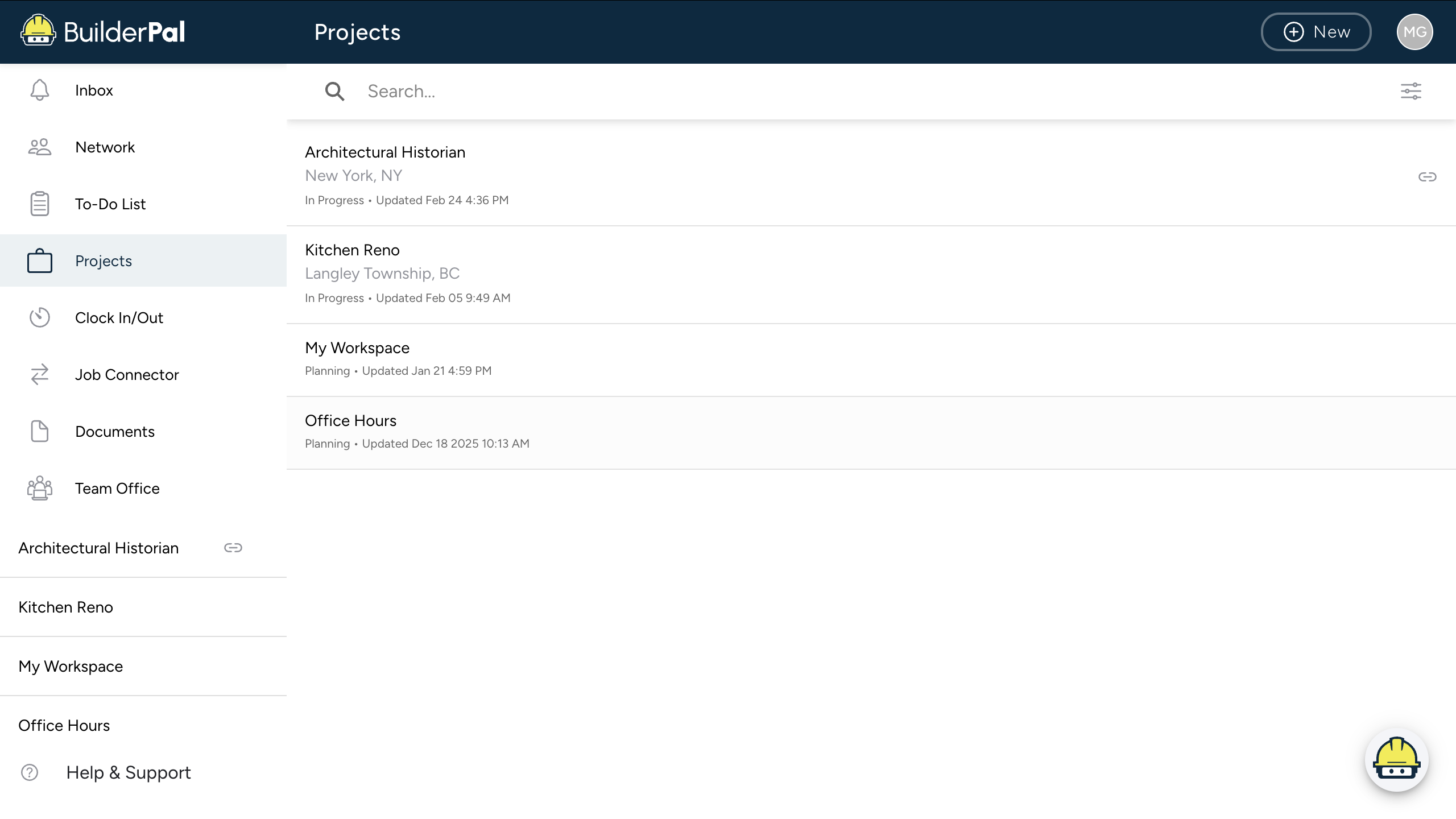
Log in to BuilderPal and select your project. — Open the BuilderPal app, enter your credentials, and choose the project from the dashboard.
-
Access the project. — In the project overview screen, click New+ to access the dropdown menu located in the top right corner, select Actions > RFI.
Method 2: From the Actions Tab
Confirmation
You'll know it worked when the RFI appears in the Actions overview, and the assignee receives a notification requesting their response.
FAQ
Q: What should be included in an RFI description? A: A clear question, context from plans or specs, and any potential impacts to help the responder provide accurate information.
Q: Can RFIs be linked to other actions? A: Yes, you can reference related change orders, punch lists, or site instructions within the RFI details.
Q: How are RFI responses handled? A: Responders can reply directly in BuilderPal, updating the status and attaching answers or revised documents.
Q: What if an RFI requires urgent attention? A: Set a short due date and use notifications to alert key stakeholders; escalate via job chat if needed.
Q: Are RFIs auditable for project records? A: Yes, all RFIs and responses are logged with timestamps and user details for compliance and disputes.