
Learn The Project Dashboard
Summary
This tutorialarticle coversexplains howthe tokey navigatefeatures and utilizeof the Project Dashboard in BuilderPal. It helps adminsBuilderPal and teamhow membersto monitoruse them for effective project status,oversight.
Summary
The tools,Project Dashboard groups navigation, monitoring, and managemanagement dailytools tasks efficiently fromin one centralplace, hub.helping teams stay informed and take action quickly.
Prerequisites
- Role or permission needed: Any team member with access to the project (e.g., Admin GC, Team Project Manager, Team Member)
. Any setupSetup required: Log in to your BuilderPal account andhaveselect an active projectselected.
Steps
-
Access the Project Dashboard
Instruction:Log in to BuilderPal viaappweb orweb,mobile.- Select
select youra project from themainProjects menu or search for it. Screenshot: Insert immediately after the step to show the UI.
then!
-

View the Overview Section
Instruction: On the dashboard, checkReview the top section of the dashboard for projectsummary,summaryincludingdetailsstatus,suchtimeline,as:budget- Status
Screenshot:Timeline- Budget
immediatelyoverview - Alerts
theorstep to show the UI.notifications
overview, and alerts.Insertafter!
-
Navigate Key Features
Instruction:Use the sidebar or tabs to accesssectionscorelikesections,Tasks,including:Documents,- Tasks
- Documents
- Team
- Bids
- Timesheets
- RFIs / Submittals
Team,Bids,Timesheets,andRFIs/Submittals.- Click
onanyanysection to drilldown.into Screenshot:detailedInsertviews.
immediately after the step to show the UI.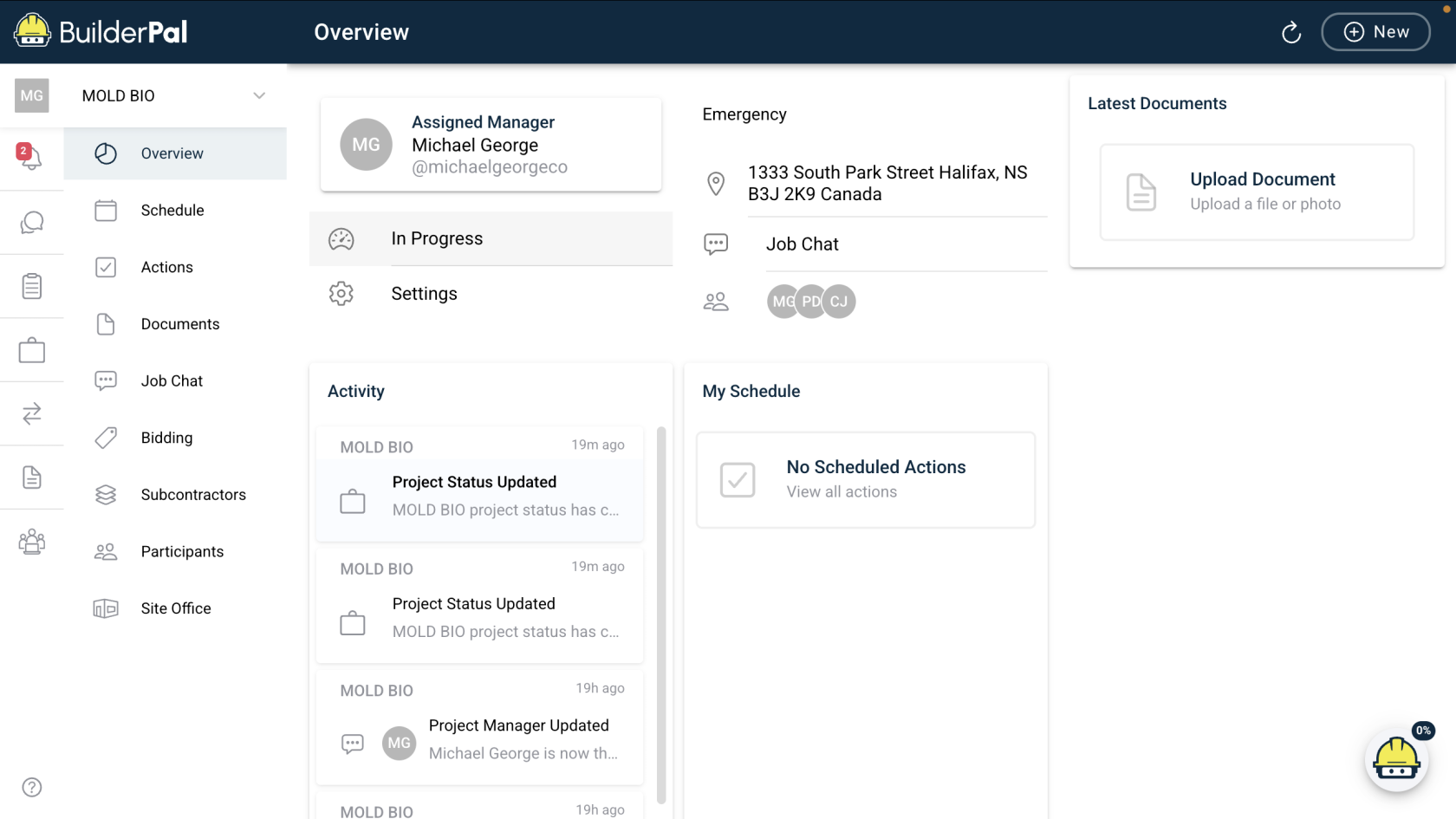
! -
Manage Tasks and
UpdatesSchedule ActionsInstruction: InOpen the Tasksarea,sectionviewto:- View open
items,items - Assign
responsibilities,responsibilities - Add new
tasks.tasks
assignor add- View open
- Use filters
forto sort by priority or duedates. Screenshot: Only if not obvious.date.
!
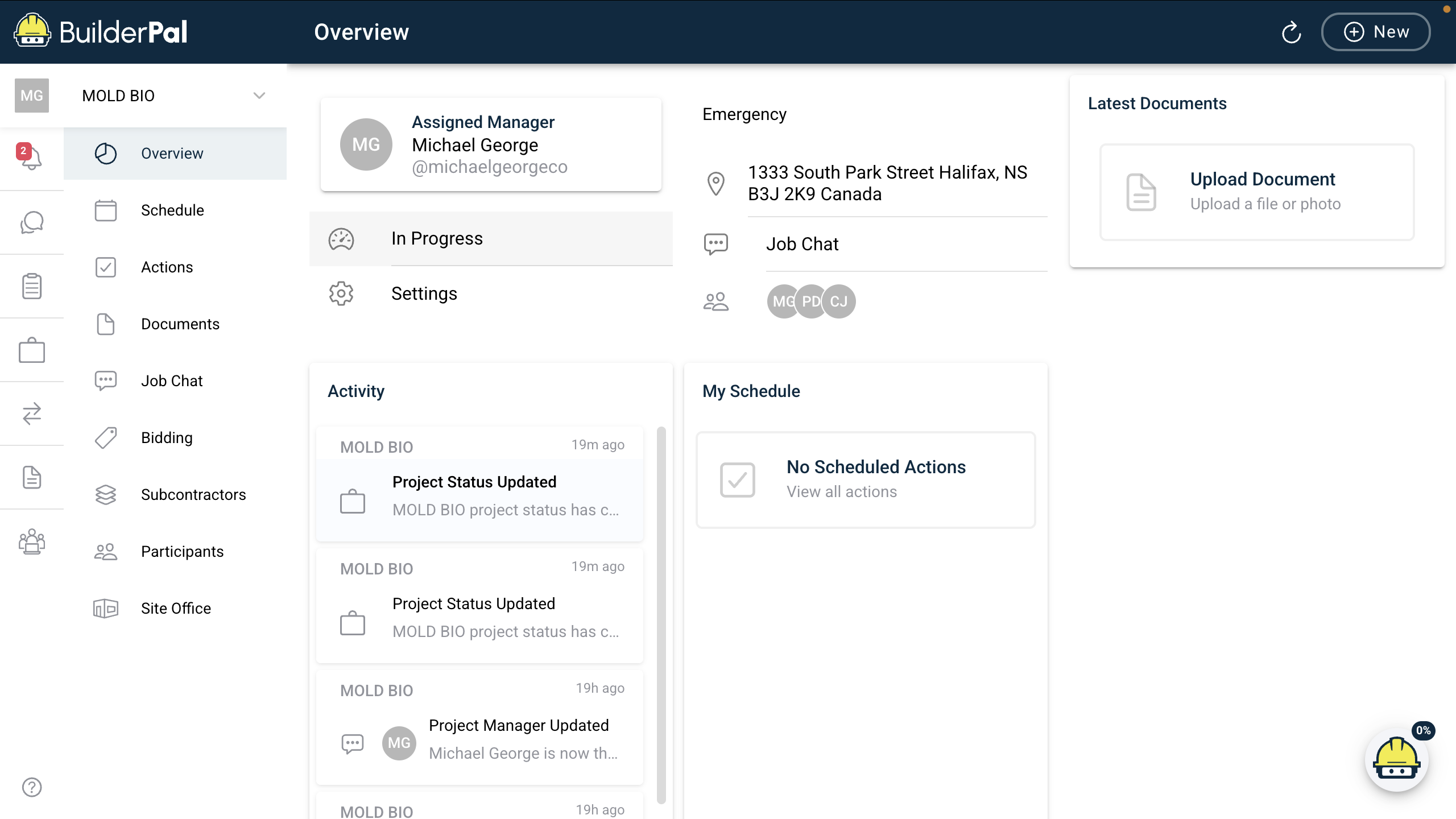
Confirmation
“You’ll know it worked when the dashboard loads with your project’s real-time project data, such asincluding updated status, tasks, and team info visible.”information.
FAQTips
Q:ProWhattip:shouldCustomizeIyourdodashboardifview using filters in the Overview and Tasks sections to focus on what matters most to your role.- Time saver: Bookmark the dashboard
doesn'tURLload?forA:quickEnsure you're logged in with the correct credentials and have internet access. Try refreshing the pageaccess, orswitching devices.Q: Can I customize the dashboard view?A:Yes,usefilters and settings in the overview and tasks sections to personalize what data is displayed based on your role.Q: How often does the dashboard update?A:The dashboard updates in real-time as team members add tasks, documents, or updates, but check for alerts if data seems outdated.
monitoring.Q: Is the dashboard accessible on mobile?A:Yes, log in viathe BuilderPal mobile appto access the dashboard with similar features optimizedformobileon-the-gouse.
Q: What if I don't see certain sections like Bids or Timesheets? A: This may depend on your role permissions; contact your admin to grant access if needed.
Related Articles
- Project
AccessSetupExplainedBasics CreateAdd Team Members to a ProjectManageDashboardYourDataProjectsNot Updating- How to Create
YouraFirstNew Project - Managing Project Tasks
- Project Permissions Overview