
Payment Methods & Invoices
Summary:
This article explains how to add, manage, and update payment methods for your BuilderPal Pro subscription, and where to find your invoices and billing history.
Prerequisites
You’ll need one of the following roles on your team: Team Administrator, Team Finance Manager, Team Business Manager, Team Project Manager.
You also need access to your team’s Manage Subscription page.
Where Billing Is Managed
BuilderPal subscriptions can be billed in three different ways depending on how the subscription was created:
- BuilderPal Web Billing (Stripe)
Used when a subscription is purchased on web. Supports multiple cards. - Apple App Store Billing (iOS)
Managed by Apple using your Apple ID. - Google Play Store Billing (Android)
Managed by Google through your Play Store account.
The active subscription will always attempt to charge the default payment method associated with the account that purchased it.
How to Add or Update a Payment Method (Web / Stripe Billing)
Use this if your team’s Pro plan is managed through BuilderPal directly, not through Apple or Google.
Step 1: Open Manage Subscription
- Go to Team Office
- Scroll to Team Admin
- Click Manage Subscription
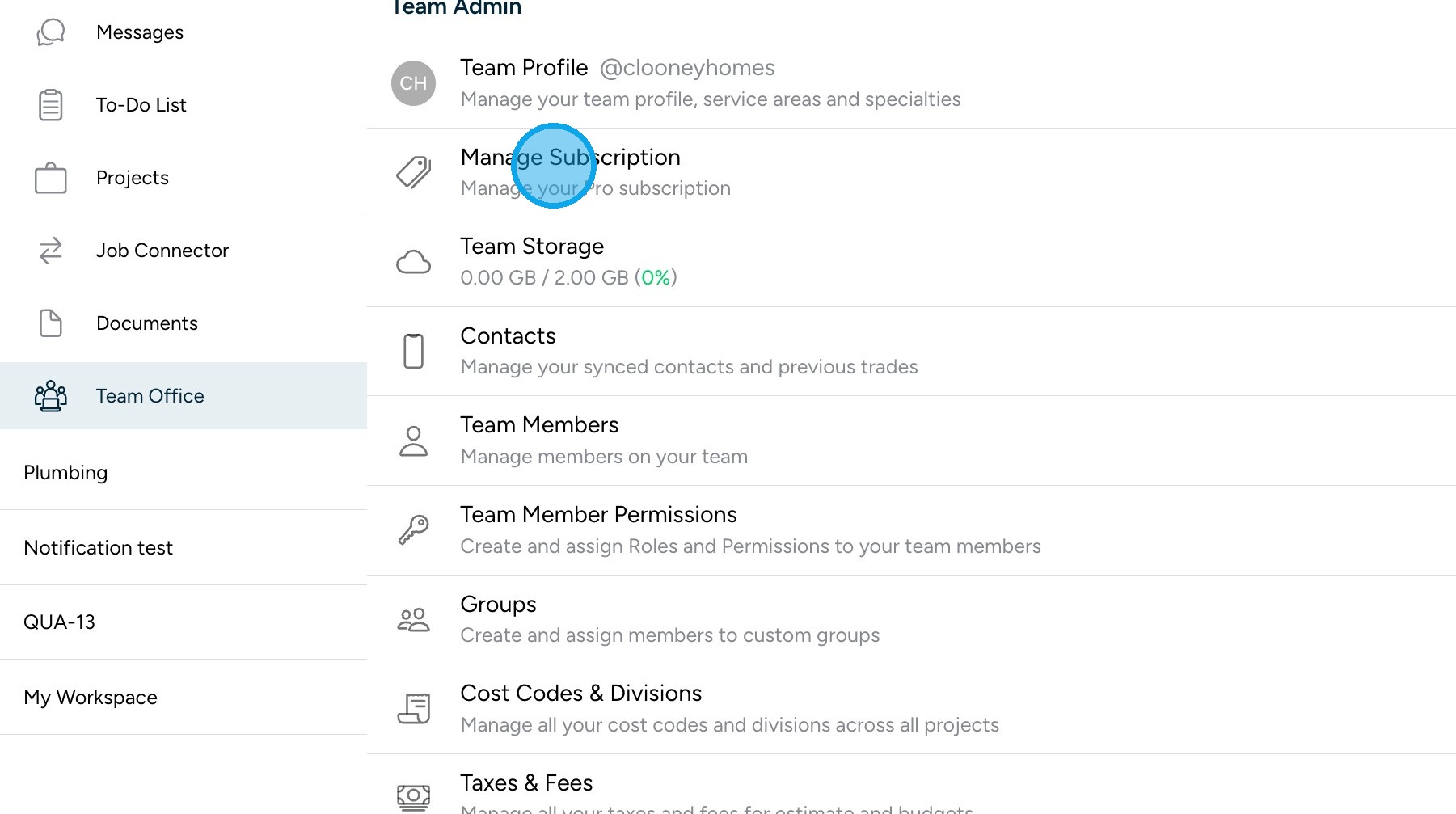
Step 2: Open Billing Settings
- Inside the subscription screen, open your billing or payment section
- You’ll see your current saved payment methods (if any)
Step 3: Add or Change a Payment Method
- Click Add Payment Method
- Enter your credit or debit card details
- Choose whether to set it as your default payment method
- Save your changes
BuilderPal supports multiple saved cards
The subscription always charges the default card
ACH / bank transfers are not supported yet
Managing App Store or Google Play Subscriptions
If your subscription was purchased through iOS or Android, BuilderPal does not manage your billing directly.
Instead:
Apple App Store
Manage through your Apple ID:
Settings → Your Name → Subscriptions
Google Play Store
Manage through:
Google Play Store → Profile → Payments & Subscriptions
We strongly encourage teams to move App Store / Google Play subscriptions to centralized web billing when possible, to avoid ownership and access issues if staff changes.
Viewing Invoices & Billing History
For Web / Stripe Billing
- Go to Team Office
- Open Team Admin → Manage Subscription
- Scroll to your billing or invoice section
- View or download invoices from your billing history
Stripe handles invoice generation and delivery.
For App Store / Google Play Subscriptions
BuilderPal does not generate internal invoices.
You must download receipts from:
- Apple: Your Apple ID purchase history
- Google: Your Google Play purchase history
How Taxes Work
- Taxes are included directly in all subscription pricing.
- BuilderPal calculates tax automatically based on your billing location.
- You do not need to configure tax settings manually.
Confirmation
You’ll know everything is set up correctly when:
- Your default payment method shows in your subscription screen
- Your subscription status is Active or Trial
- Invoices appear after successful charges
Tips
- Avoid tying subscriptions to personal Apple or Google accounts when possible
- Assign billing management to long-term company team members
- Use web billing (Stripe) for easier team billing and ownership control