
Organize Your Projects
Summary
This tutorial shows how to organize your projects by updating location types, editing project status, and using filters to sort and group them. It helps keep your project list clean, searchable, and easy to manage as your workload grows.
Prerequisites
- Role or permission needed: Any team member with access to projects (e.g., Admin GC, Team Project Manager, Team Member).
- Any setup required: Log in to BuilderPal and have one or more active projects.
Steps
-

Access the Projects List
○ Instruction: From the main dashboard, click the Projects tab in the sidebar to view all your accessible projects.
-

Edit/Change Location Type
○ Select a project, click on the Address, then change your Address location type (e.g., "Residential", "Commercial", "Industrial") and save.
-
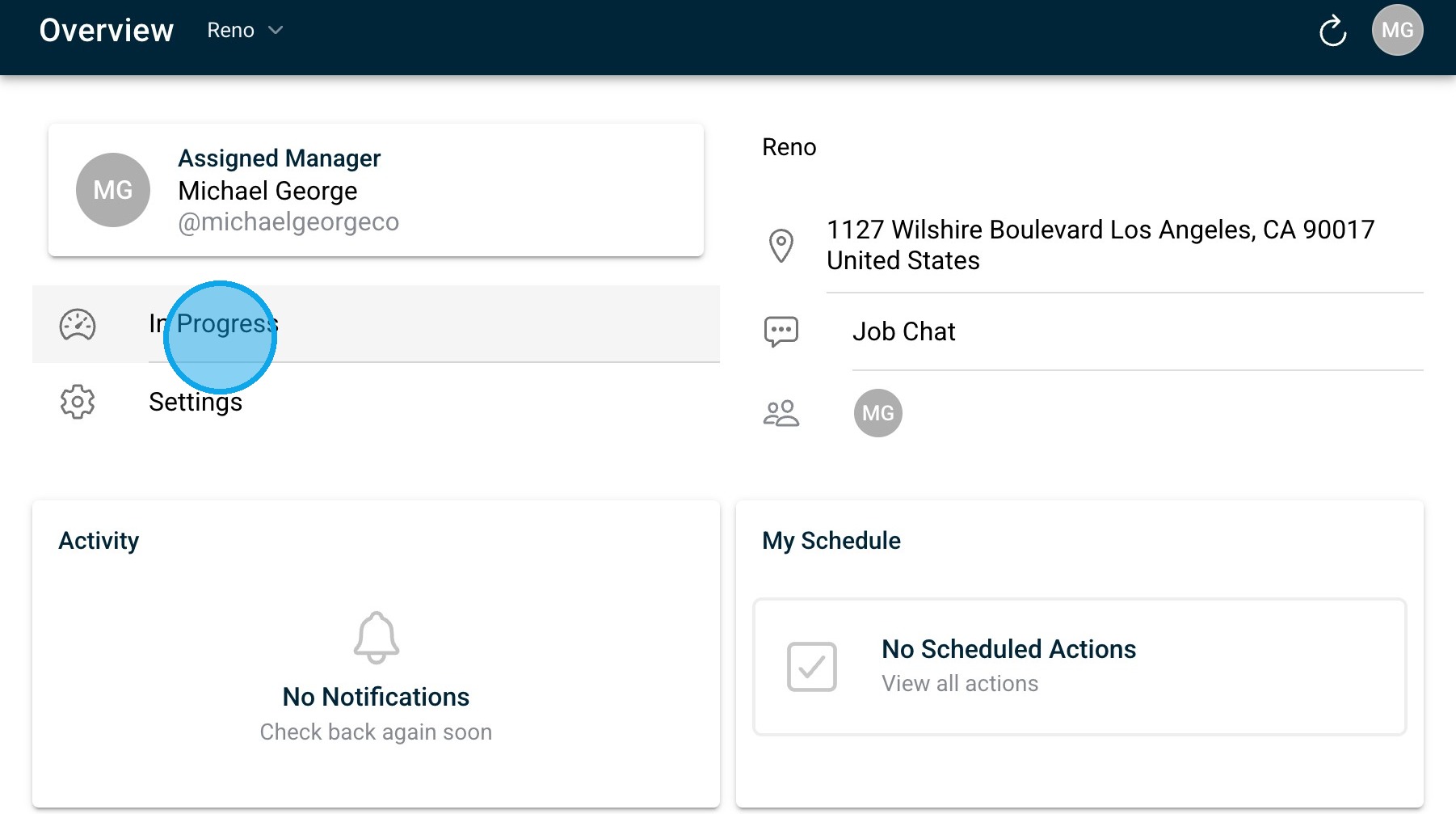
Edit Project Status
○ You can edit the status of your Project then use the filter options back at the top of the Projects section to sort by tags, status, or date; create custom groups if available in your role.
-

Group or Filter Projects
○ Use the filter options at the top of the Projects section to sort by tags, status, or date; create custom groups if available in your role. Click "Filters" Click "Planning"
Confirmation
“You’ll know it worked when your Projects list refreshes with updated location types, statuses, and filtered/grouped results matching your selections.”
FAQ
Q: Why can’t I see the status or location type field on some projects? A: You may lack edit permissions for that project; only admins or project managers can usually change these fields.
Q: Do filters save for everyone on the team? A: No, filters are personal and reset when you log out or switch devices unless you save a custom view (if available).
Q: What happens to archived projects in filters? A: Archived projects are hidden from the main list by default but can be shown using the “Show Archived” filter option.
Q: How do I remove a filter I applied? A: Click Clear Filters or the X next to each active filter at the top of the list.