
Create Cost Codes & Divisions
Summary
This tutorial guides you through setting up cost codes and divisions in BuilderPal, essential for organizing financial tracking, budgeting, and time entries in projects. Proper setup ensures accurate cost allocation, reporting, and compliance across your team.
Prerequisites
- Access to the Company Back Office as an admin or finance role.
- Basic understanding of your company's cost structure.
Steps
-
Navigate to the Manage Cost Codes and Divisions page in your team office.

-

Click the plus button in the top right corner and select Add Division.
-

Enter the division code, display name, and description.
-

Click Select a Sector to browse and choose from a pre-loaded list of divisions if needed.
-

Click Save to add the division.

-
Select Add Cost Code from the plus button dropdown in the top right corner.
-
Enter the cost code details, including code, display name, description, time clockable status, unit type, default quantity, default amount, and associated division.

-
Click Save to add the cost code.
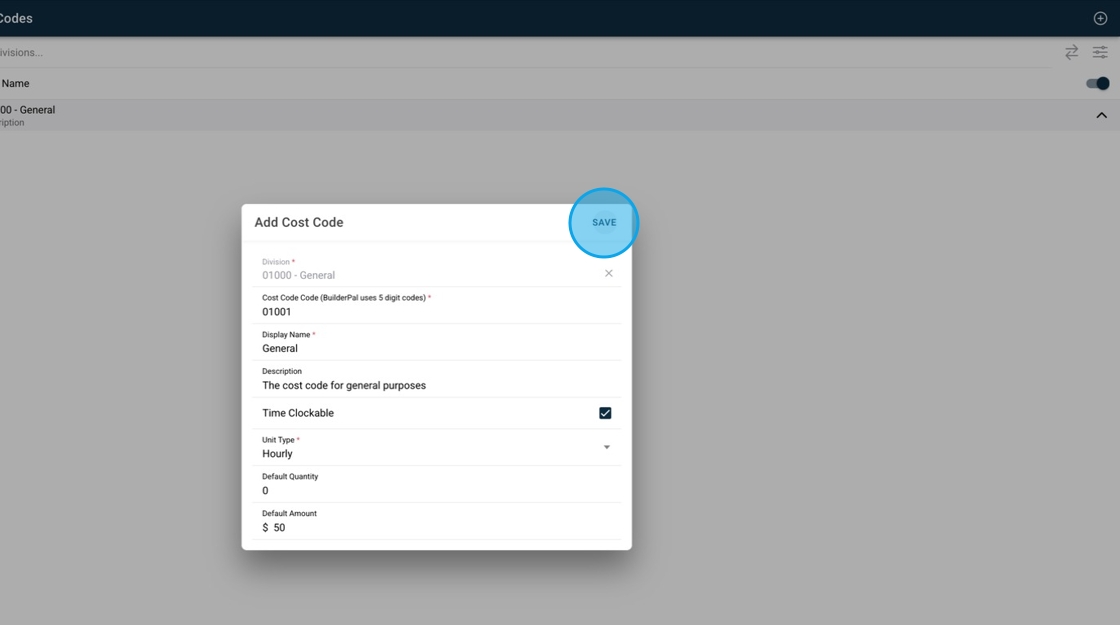
-

Click Import divisions and cost codes as an alternative setup option.

-
Choose to import custom cost codes or BuilderPal's default set.

-
Click Import to complete the setup.
Confirmation
The new divisions and cost codes appear in the list on the Manage Cost Codes and Divisions page, ready for use in time entries, budgets, and reports.
FAQ
Q: Can I edit a cost code after saving it?
A: Yes, click the edit icon next to the cost code in the list to update details like description or time clockable status.
Q: What happens if I import BuilderPal's defaults?
A: It populates standard divisions and codes based on common construction categories, which you can customize further.
Q: Why can't I see the import option?
A: Ensure you have admin or finance role access; if not visible, check your permissions in team settings.
Q: Are cost codes required for time tracking?
A: Yes, they help categorize hours accurately for reporting and budgeting in projects.
Q: How do divisions group cost codes?
A: Divisions act as categories (e.g., Electrical), organizing related cost codes for easier management and filtering.
Related Articles
- Manage Taxes & Fees
- Generate Payroll Report
- Time-tracking & Kiosk App Control Center
- Edit Company Profile
- Create Team Members